



Made byBobr AI

Basic IT Support for Medics: Layer 1 & MC4 Guide

Learn basic IT troubleshooting for medic deployments, including Layer 1 physical checks, MC4 terminal basics, printer setup, and WiFi fallback procedures.

#it-support#troubleshooting#layer-1#mc4-basics#network-training#field-it#technical-support

Basic IT Support for Medics – Poland Deployment

Layer 1 Troubleshooting & MC4 Basics: A Visual Guide

UNCLASSIFIED / FOR TRAINING USE ONLY
Made byBobr AI

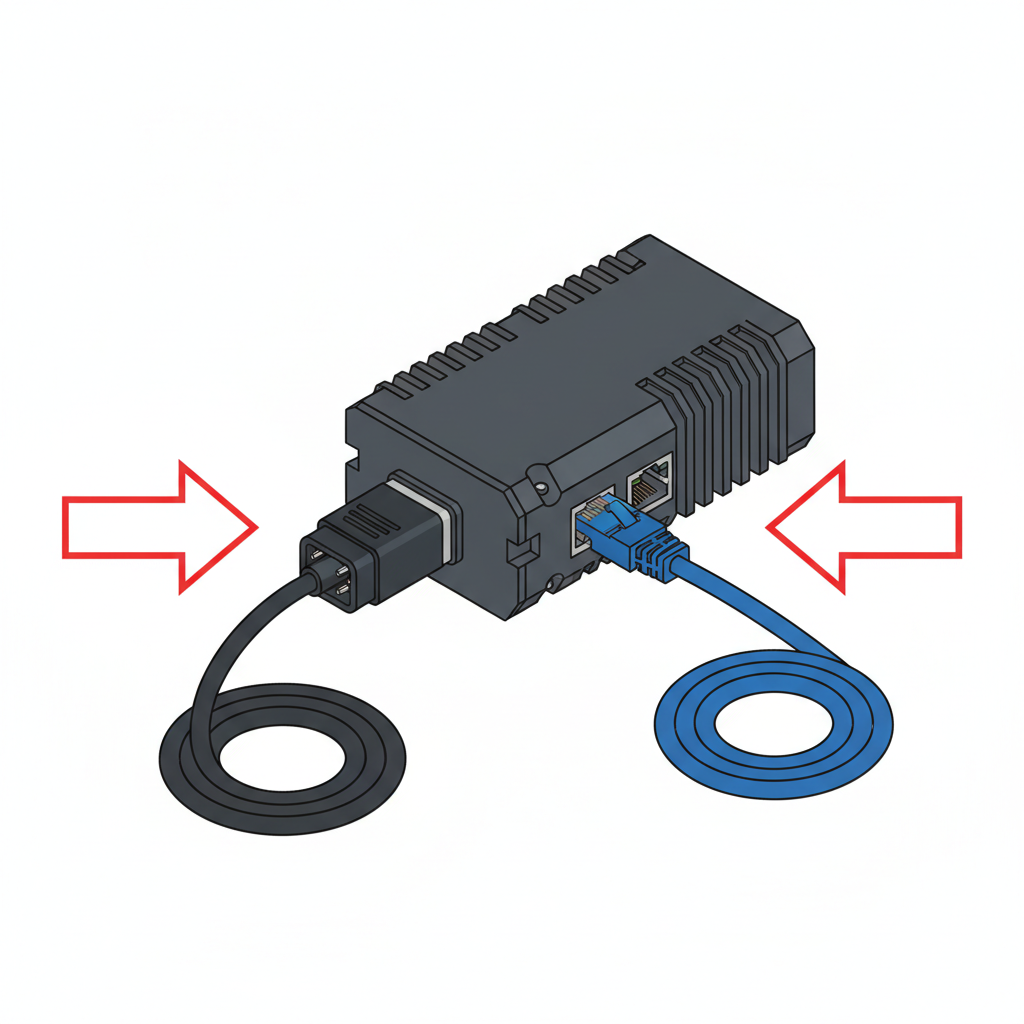
What Is Layer 1?

Layer 1 = The Physical Stuff. If you can touch it, check it first.
  • Power
  • Cables (Ethernet)
  • Port Lights
UNCLASSIFIED / TRAINING USE ONLY
Made byBobr AI

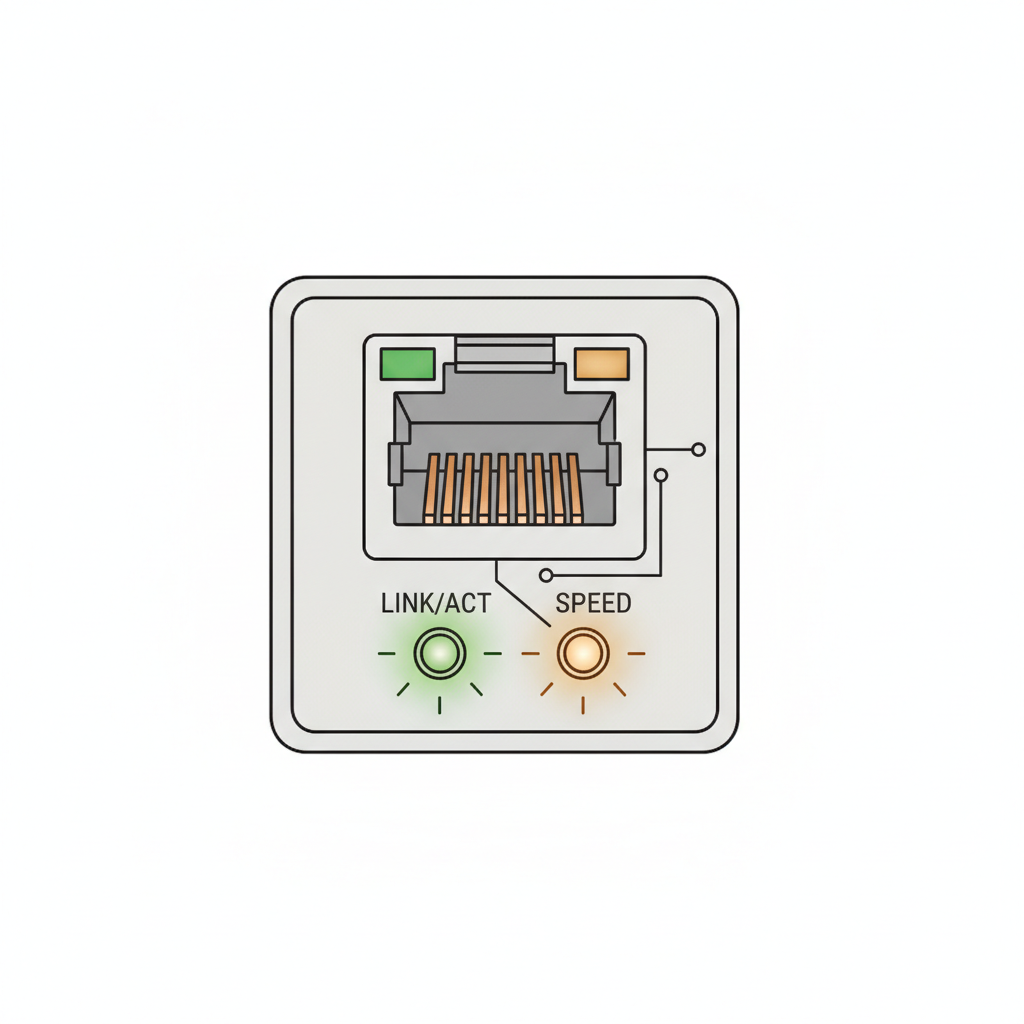
Reading the Network Lights

GREEN (Solid/Blink) = Connected
AMBER (Blink) = Data Moving
NO LIGHTS = Check Cable or Port
UNCLASSIFIED / TRAINING USE ONLY
Made byBobr AI

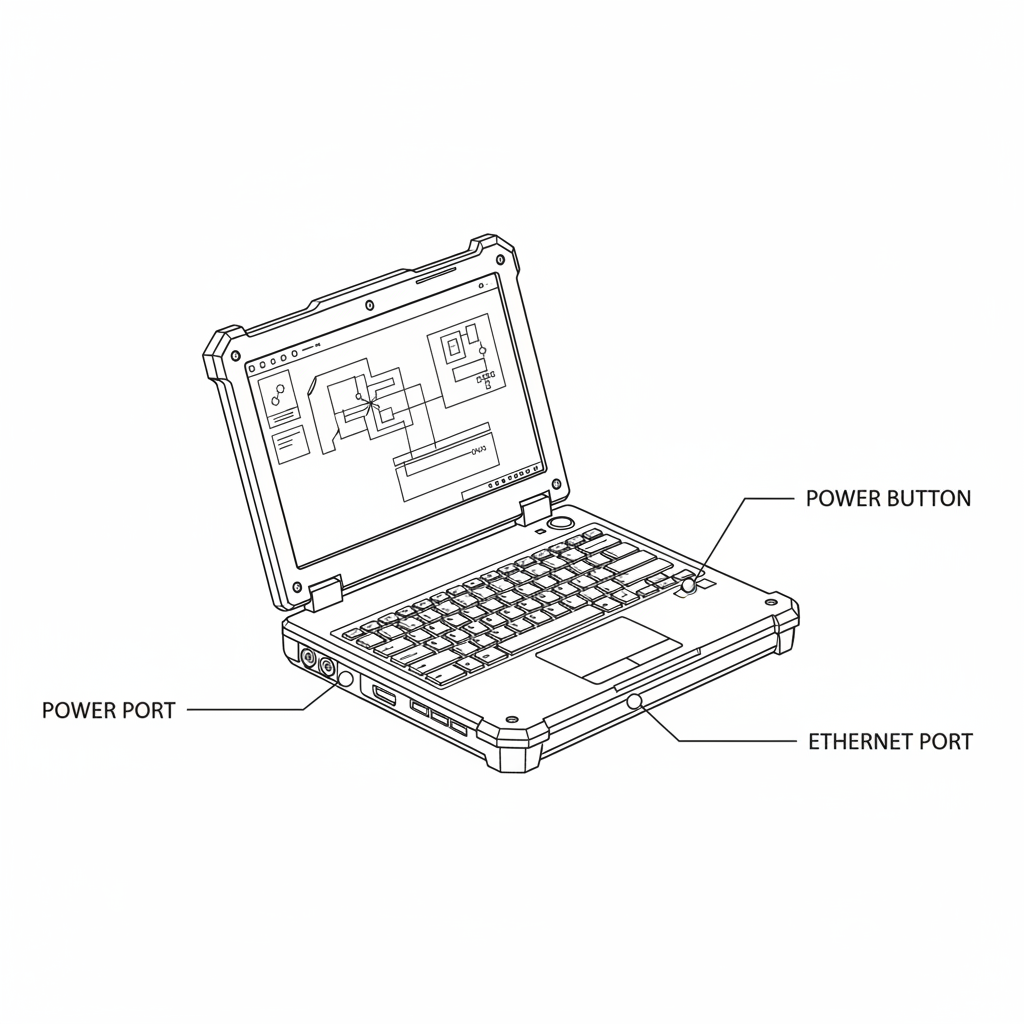
MC4 Terminal & HHC Laptop Basics

Physical Inspection Checklist

[ ] 1. Check Power (AC Adapter brick light must be ON)
[ ] 2. Check Network Cable (Click sound when inserted)
[ ] 3. Restart Terminal via Start Menu
UNCLASSIFIED / TRAINING USE ONLY
Made byBobr AI

MC4 Troubleshooting Flow

Are lights blinking on the port?
YES: Restart Computer
NO: Reseat Cable at both ends
Still failing? Swap cable.
UNCLASSIFIED / TRAINING USE ONLY
Made byBobr AI

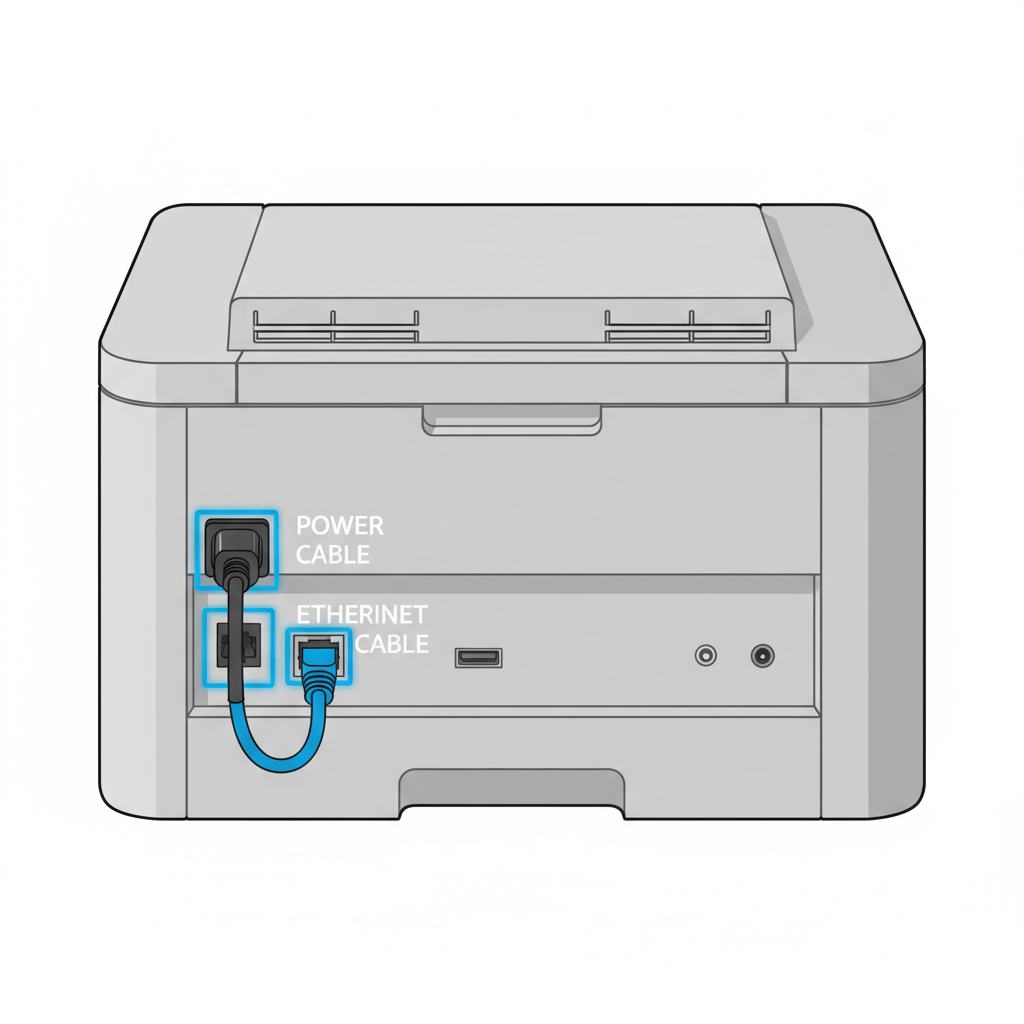
Printer Problems

  • 1. Power ON (Screen active)
  • 2. Ethernet Cable Connected
  • 3. Screen says 'Ready' or 'Online'
Action: Restart Printer (Turn off, wait 10s, Turn on)
UNCLASSIFIED / TRAINING USE ONLY
Made byBobr AI

WiFi Issues & Fallback

1. Confirm WiFi Switch is ON
2. Select correct Unit Network (Not Guest)
If WiFi fails: PLUG IT IN.
Always have a spare Ethernet cable.
UNCLASSIFIED / TRAINING USE ONLY
Made byBobr AI

When to Call S6 (Escalation)

Have you checked?

  • Cables are plugged in securely.
  • Port lights are blinking.
  • You have restarted the device.
Problem Continues -> CALL S6
UNCLASSIFIED / TRAINING USE ONLY
Made byBobr AI

Before You Call: Gather Info

Write this down:

1. Building & Room Number
2. Device Name (Tag/Label)
3. Does the port have lights?
4. Error Message on Screen
UNCLASSIFIED / TRAINING USE ONLY
Made byBobr AI

Summary: Level 1 Rules

CHECK PHYSICAL: Cables, Power, Lights.
RESTART: Fixes 90% of issues.
ESCALATE: If lights are dead or restart fails.
UNCLASSIFIED / TRAINING USE ONLY
Made byBobr AI
Bobr AI

DESIGNER-MADE
PRESENTATION,
GENERATED FROM
YOUR PROMPT

Create your own professional slide deck with real images, data charts, and unique design in under a minute.

Generate For Free

Basic IT Support for Medics: Layer 1 & MC4 Guide

Learn basic IT troubleshooting for medic deployments, including Layer 1 physical checks, MC4 terminal basics, printer setup, and WiFi fallback procedures.

Basic IT Support for Medics – Poland Deployment

Layer 1 Troubleshooting & MC4 Basics: A Visual Guide

UNCLASSIFIED / FOR TRAINING USE ONLY

What Is Layer 1?

Power

Cables (Ethernet)

Port Lights

Layer 1 = The Physical Stuff. If you can touch it, check it first.

Reading the Network Lights

GREEN (Solid/Blink) = Connected

AMBER (Blink) = Data Moving

NO LIGHTS = Check Cable or Port

MC4 Terminal & HHC Laptop Basics

1. Check Power (AC Adapter brick light must be ON)

2. Check Network Cable (Click sound when inserted)

3. Restart Terminal via Start Menu

MC4 Troubleshooting Flow

Are lights blinking on the port?

YES: Restart Computer

NO: Reseat Cable at both ends

Still failing? Swap cable.

Printer Problems

Power ON (Screen active)

Ethernet Cable Connected

Screen says 'Ready' or 'Online'

Action: Restart Printer (Turn off, wait 10s, Turn on)

WiFi Issues & Fallback

Confirm WiFi Switch is ON

Select correct Unit Network (Not Guest)

If WiFi fails: PLUG IT IN.

Always have a spare Ethernet cable.

When to Call S6 (Escalation)

Cables are plugged in securely.

Port lights are blinking.

You have restarted the device.

Problem Continues -> CALL S6

Before You Call: Gather Info

1. Building & Room Number <br> 2. Device Name (Tag/Label) <br> 3. Does the port have lights? <br> 4. Error Message on Screen

Summary: Level 1 Rules

CHECK PHYSICAL: Cables, Power, Lights.

RESTART: Fixes 90% of issues.

ESCALATE: If lights are dead or restart fails.

  • it-support
  • troubleshooting
  • layer-1
  • mc4-basics
  • network-training
  • field-it
  • technical-support