

Made byBobr AI

Streamlining REST Configuration with Pega App Studio

Learn how to configure REST integrations in Pega App Studio. A step-by-step guide to data objects, mapping JSON, and environment settings.

#pega#low-code#rest-api#app-studio#constellation#data-integration#software-development
Watch
Pitch

Configuration of REST in App studio

A Practical Demo using Pega App Studio in Constellation

Made byBobr AI

Demo Overview

  • Defining the Data Object in App Studio
  • Setting up REST Connection Details
  • Mapping JSON Responses to Pega Properties
  • Detailed Environment Configurations
  • Validation via Dev Studio and Data Page Execution
Made byBobr AI

Step 1: Create Data Object

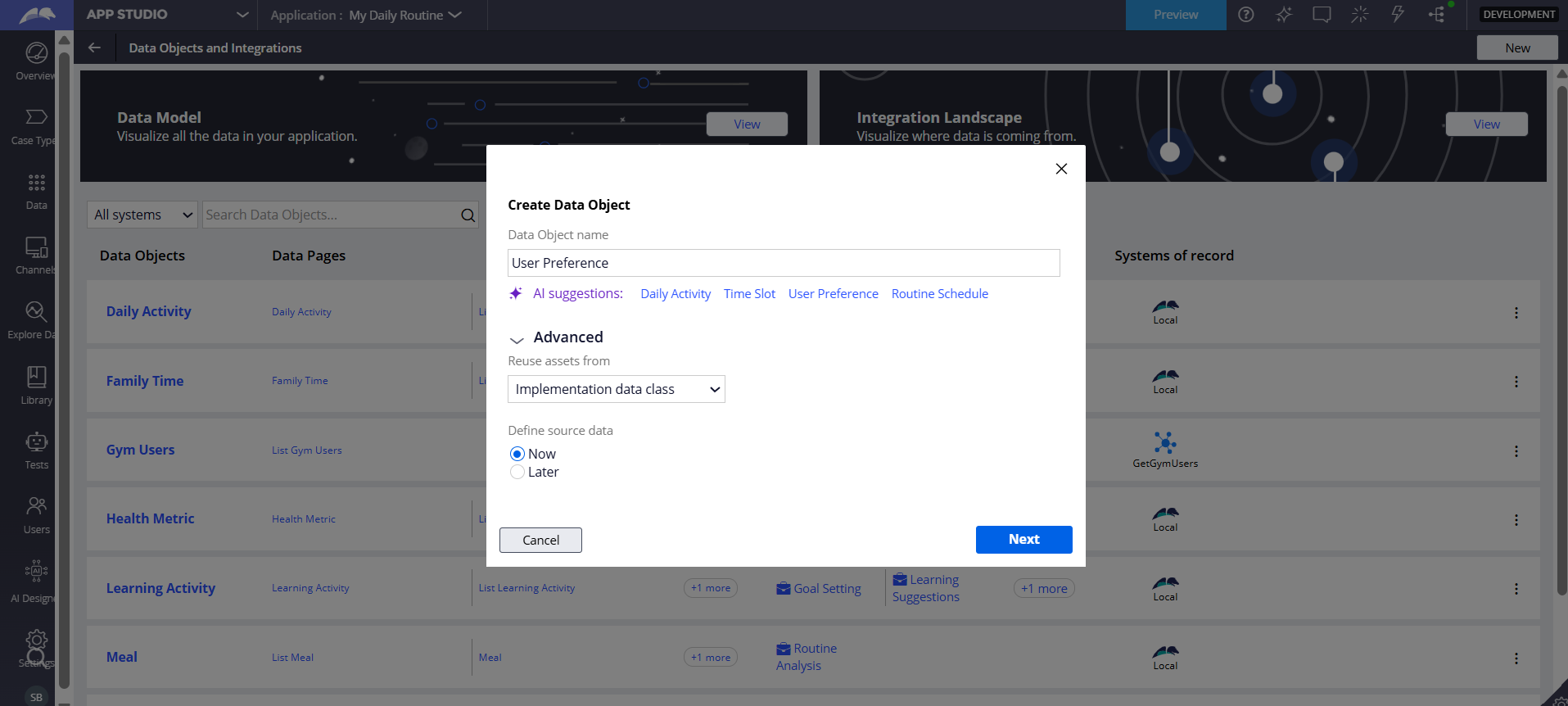
The process begins in the Data explorer. We define a new Data Object named 'User Preference'. App Studio allows us to immediately define the source data. Selecting 'Now' allows us to configure the integration immediately.

Made byBobr AI

Step 2: Connection Details

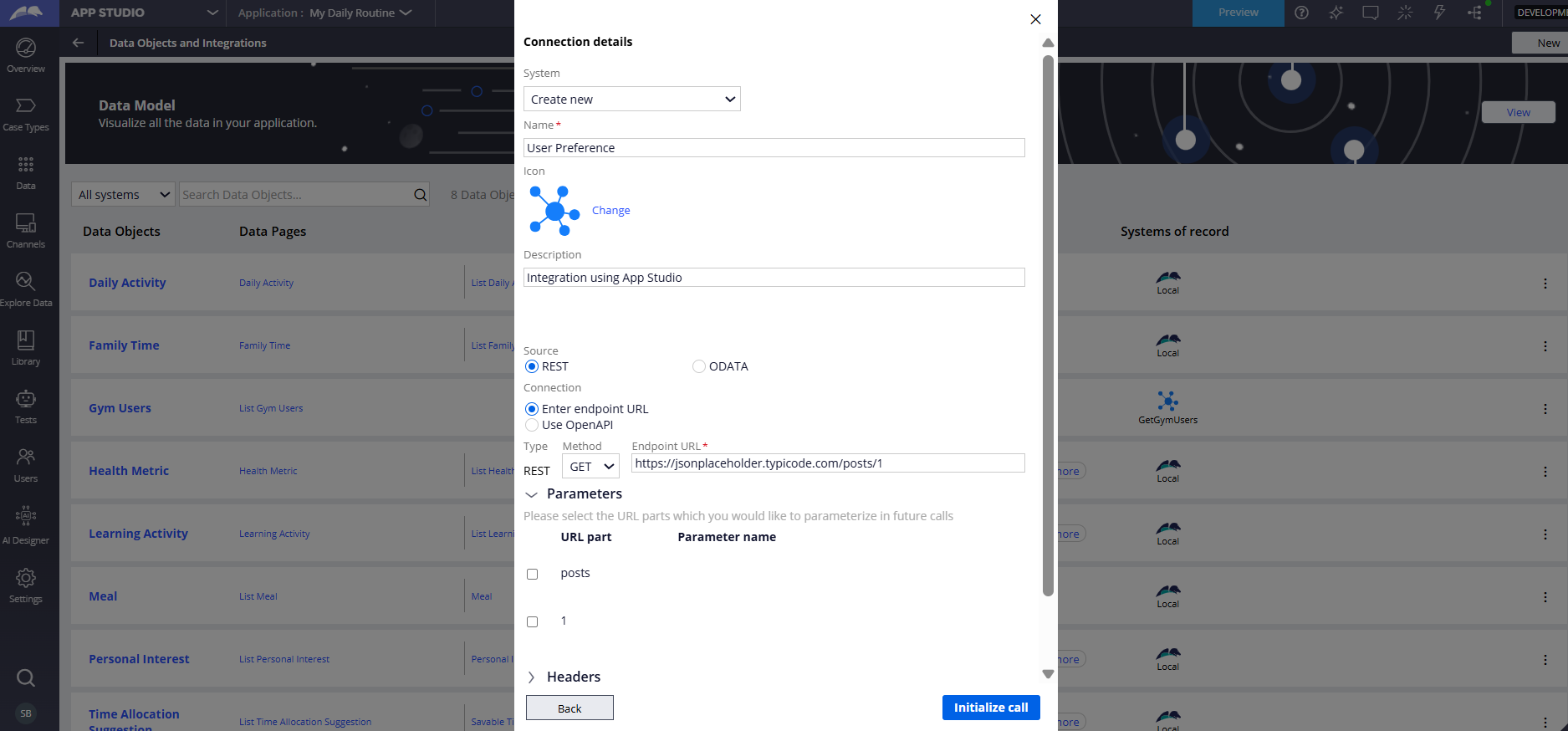
We configure the REST connection by defining the System, Name, and Endpoint URL. In this demo, we use a placeholder API. Note the use of parameterization in the URL path for flexibility.

Made byBobr AI

Step 3: Data Mapping

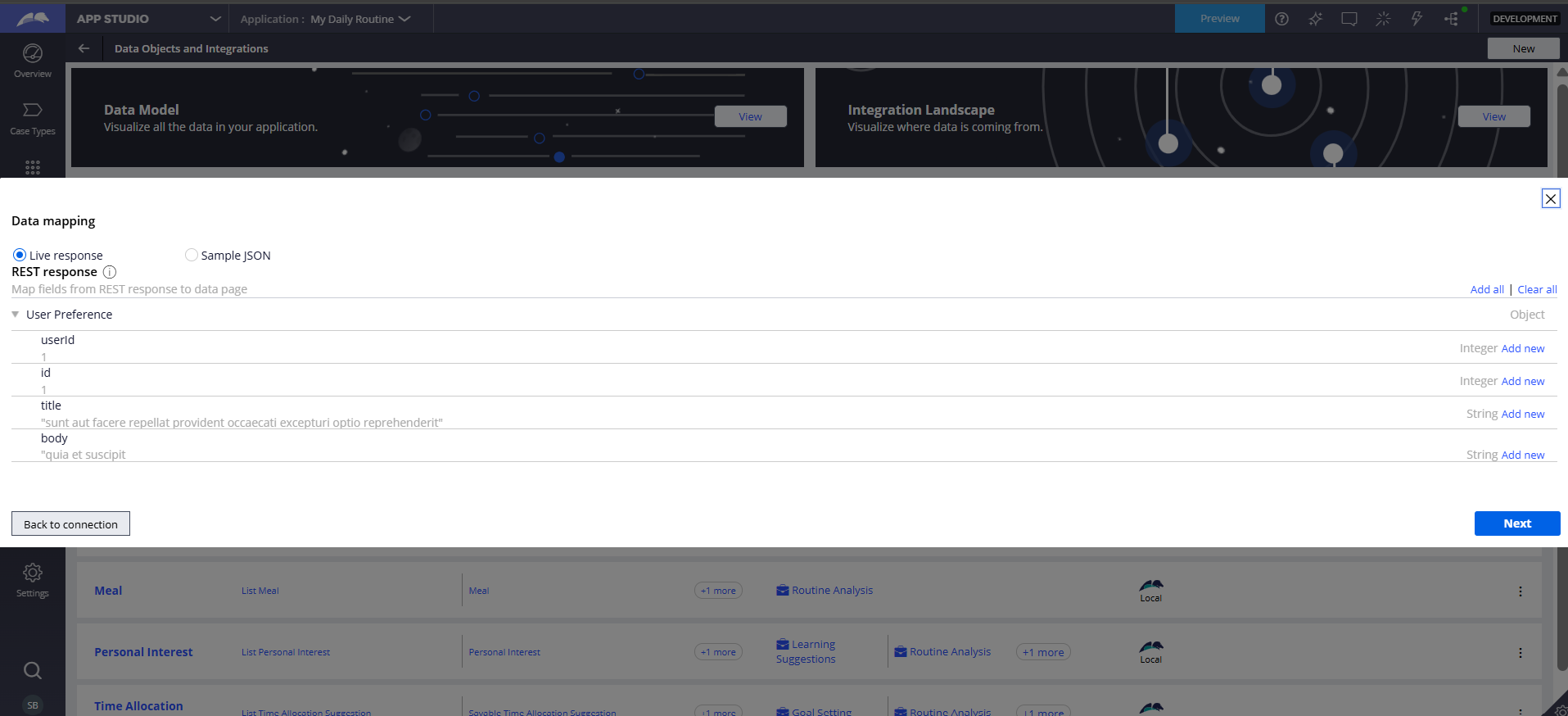
Pega parses the JSON response (Live or Sample). We visually map external fields (userId, id, title, body) directly to our Pega Data Model. This creates the necessary properties automatically.

Made byBobr AI

Step 4: Environment Settings

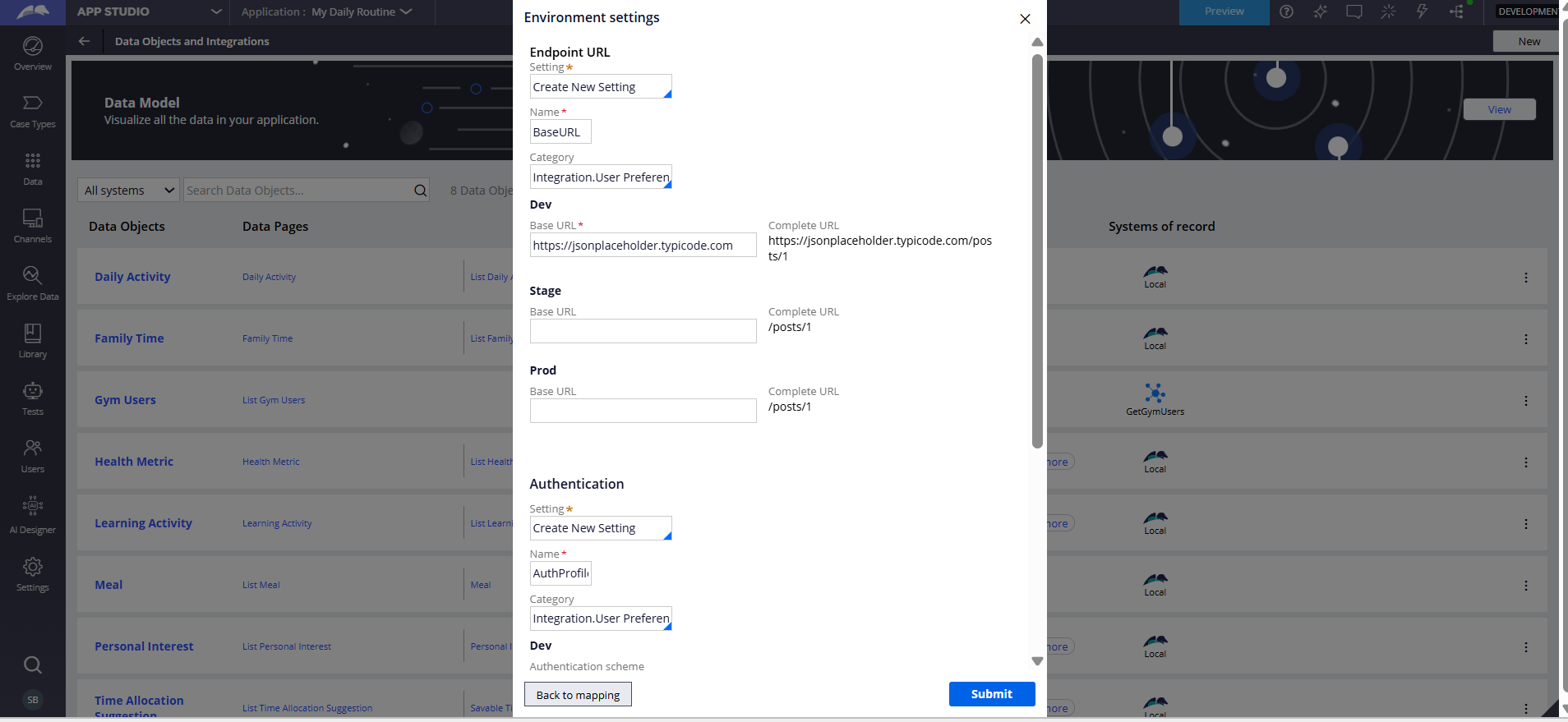
  • Define the Base URL for different environments (Dev, Stage, Prod).
  • Set authentication profiles if required.
  • Ensures seamless promotion of code between pipelines.
Made byBobr AI

Integration Generated

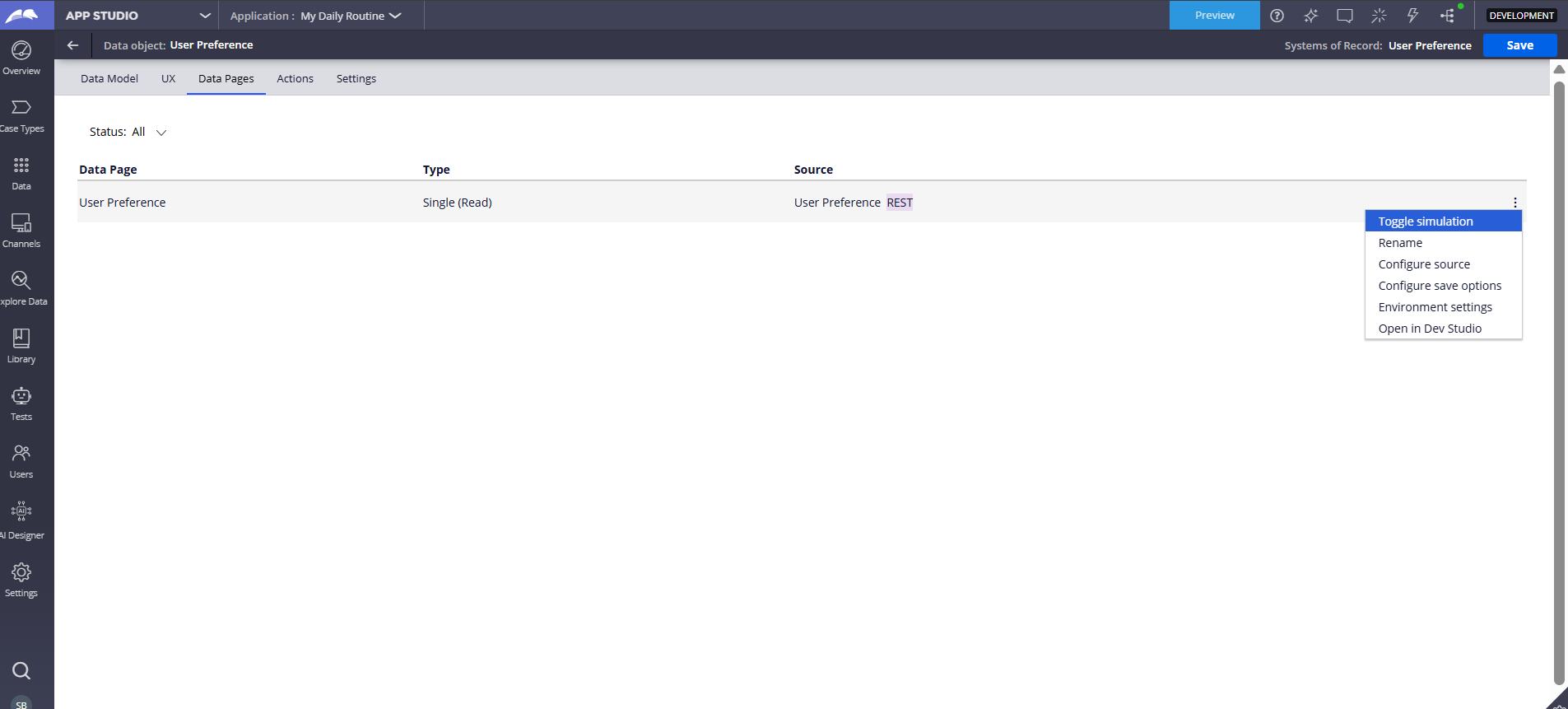
Once saved, the Data Page (Read) is visible in App Studio. From here, we can manage settings or open the object in Dev Studio for advanced configuration.

Made byBobr AI

Deep Dive: Dev Studio Artifacts

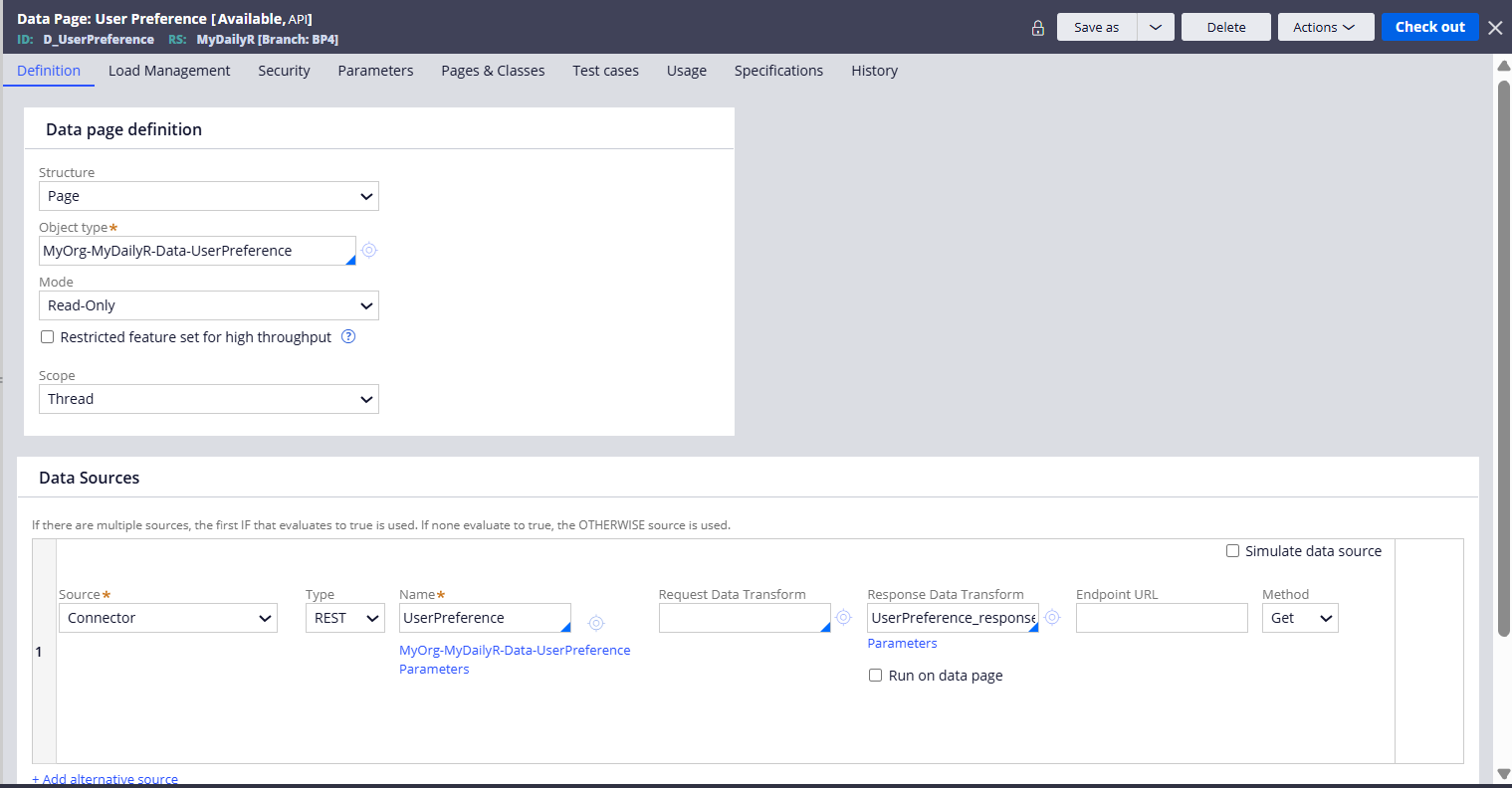
Opening the rule in Dev Studio reveals the underlying Data Page definition. We can see the Data Source configured as a 'Connector' of type 'REST', linking to the transforms and endpoint newly created.

Made byBobr AI

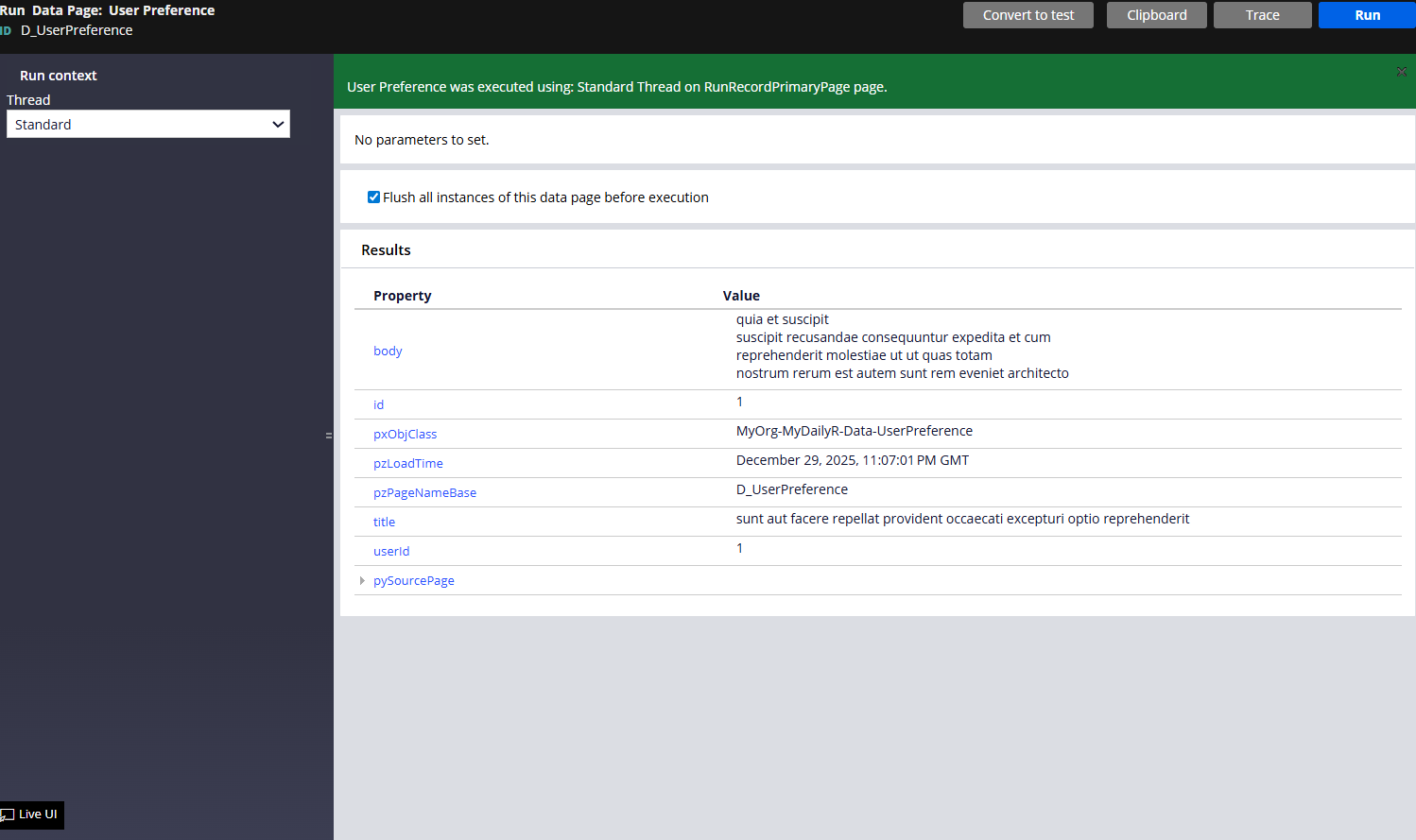
Validation Success: Data Page Run Results

Made byBobr AI

Summary

  • App Studio provides a low-code wizard for complex configurations.
  • Visual mapping removes the need for manual Activity or Transform coding.
  • Environment settings ensure safe deployment across pipelines.
  • Artifacts are fully compatible with standard Dev Studio rules.
Made byBobr AI
Bobr AI

DESIGNER-MADE
PRESENTATION,
GENERATED FROM
YOUR PROMPT

Create your own professional slide deck with real images, data charts, and unique design in under a minute.

Generate For Free

Streamlining REST Configuration with Pega App Studio

Learn how to configure REST integrations in Pega App Studio. A step-by-step guide to data objects, mapping JSON, and environment settings.

Configuration of REST in App studio

A Practical Demo using Pega App Studio in Constellation

Demo Overview

Defining the Data Object in App Studio

Setting up REST Connection Details

Mapping JSON Responses to Pega Properties

Detailed Environment Configurations

Validation via Dev Studio and Data Page Execution

Step 1: Create Data Object

The process begins in the Data explorer. We define a new Data Object named 'User Preference'. App Studio allows us to immediately define the source data. Selecting 'Now' allows us to configure the integration immediately.

Step 2: Connection Details

We configure the REST connection by defining the System, Name, and Endpoint URL. In this demo, we use a placeholder API. Note the use of parameterization in the URL path for flexibility.

Step 3: Data Mapping

Pega parses the JSON response (Live or Sample). We visually map external fields (userId, id, title, body) directly to our Pega Data Model. This creates the necessary properties automatically.

Step 4: Environment Settings

Define the Base URL for different environments (Dev, Stage, Prod).

Set authentication profiles if required.

Ensures seamless promotion of code between pipelines.

Integration Generated

Once saved, the Data Page (Read) is visible in App Studio. From here, we can manage settings or open the object in Dev Studio for advanced configuration.

Deep Dive: Dev Studio Artifacts

Opening the rule in Dev Studio reveals the underlying Data Page definition. We can see the Data Source configured as a 'Connector' of type 'REST', linking to the transforms and endpoint newly created.

Validation Success: Data Page Run Results

Summary

App Studio provides a low-code wizard for complex configurations.

Visual mapping removes the need for manual Activity or Transform coding.

Environment settings ensure safe deployment across pipelines.

Artifacts are fully compatible with standard Dev Studio rules.

  • pega
  • low-code
  • rest-api
  • app-studio
  • constellation
  • data-integration
  • software-development