





Mastering Microsoft OneDrive: A Business User Guide
Learn essential Microsoft OneDrive skills for business: file sync, secure sharing, version recovery, and collaboration strategies in 3.5 hours.
Mastering Microsoft OneDrive
A Comprehensive Guide for Business Users: From Basics to Advanced Collaboration
Instructor-Led Training | 3.5 Hours
Course Agenda & Timeline
<ul><li><strong>0:00 - 0:30</strong>: Module 1: OneDrive concepts & The Microsoft 365 Ecosystem</li><li><strong>0:30 - 1:15</strong>: Module 2 & 3: Navigation, Interface, and File Management</li><li><strong>1:15 - 1:30</strong>: <em>Break</em></li><li><strong>1:30 - 2:15</strong>: Module 4: Sharing, Collaboration & Co-authoring</li><li><strong>2:15 - 2:45</strong>: Module 5: Version History, Recovery & Security</li><li><strong>2:45 - 3:30</strong>: Final Case Study & Assessment</li></ul>
Learning Objectives
By the end of this session, you will be able to:
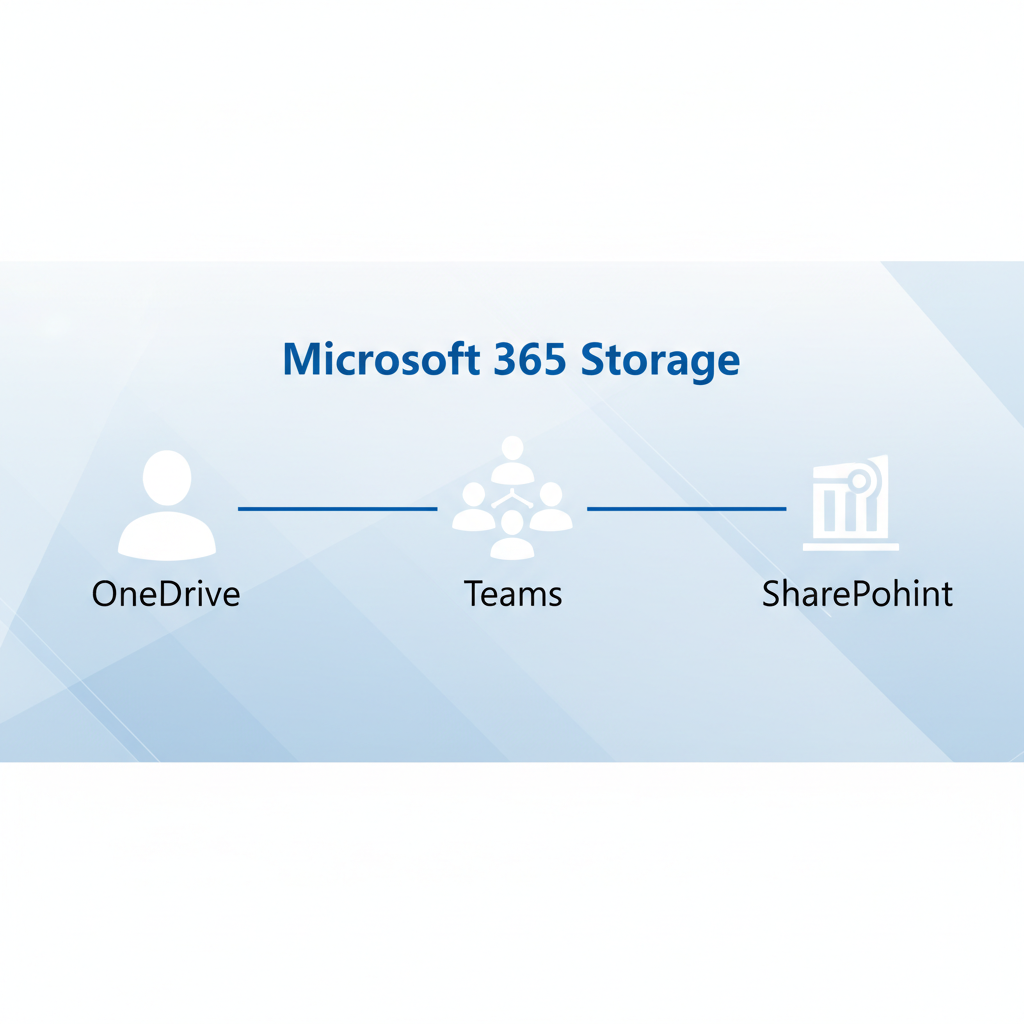
Distinguish between OneDrive, SharePoint, and Teams storage.
Sync files to your PC and manage storage on-demand.
Share documents securely using permission hierarchies.
Recover previous versions of files and deleted items.
Module 1: The 'Me', 'We', and 'All' of Storage
<strong>OneDrive (ME)</strong><br>Private drafts, individual work, documents you are not ready to share yet.
<strong>Teams (WE)</strong><br>Project files, department collaboration, documents actively being worked on by a group.
<strong>SharePoint (ALL)</strong><br>Intranet, published policies, company-wide resources, final deliverables.
Module 2: Interface & Navigation
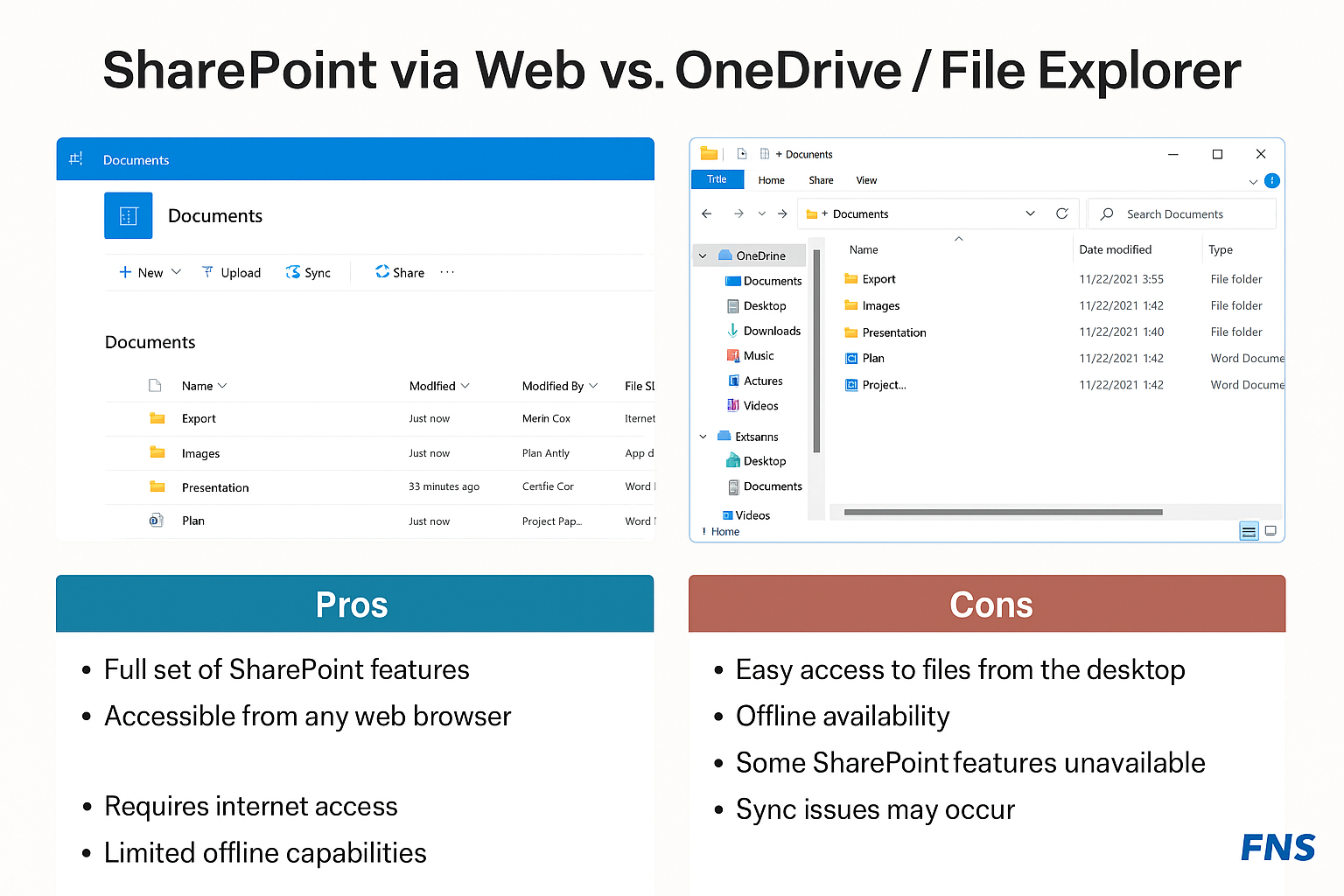
<strong>Web Interface (Browser):</strong> Best for accessing features like Version History, Recycle Bin, and Managing Access.
<strong>File Explorer (Desktop):</strong> Best for day-to-day operations—opening, editing, and moving files just like a local drive.
Understanding Sync Status Icons
<strong>Cloud Only:</strong> File is visible but takes up 0 space on your PC. Needs internet to open.
<strong>Locally Available:</strong> You opened a cloud file. It's now on your device and can be edited offline.
<strong>Always Keep on Device:</strong> You right-clicked and selected 'Always keep on this device'. Available offline permanently.
Module 4: Sharing & Permissions
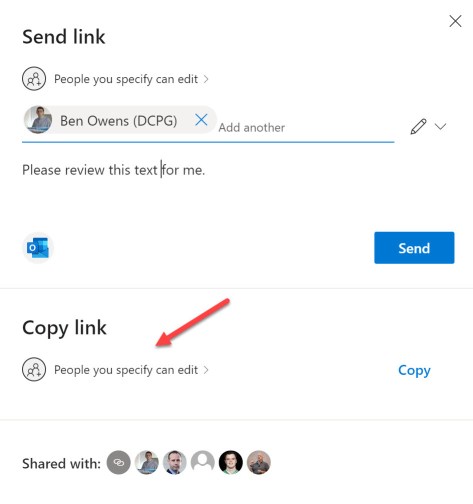
Stop attaching files to emails. Send links instead.<br><br><strong>Sharing Options:</strong><ul><li><strong>Anyone with the link:</strong> (Use with caution) No login required.</li><li><strong>People in Organization:</strong> Internal use only.</li><li><strong>Specific People:</strong> Securest method for internal/external sharing.</li></ul><br><strong>Permission Levels:</strong><br>Can Edit vs. Can View vs. Can Review.
Why Modern Attachments (Links) Matter
Using OneDrive links prevents file version conflicts. Based on corporate study of 50 collaborative projects.
Module 5: Security & Recovery
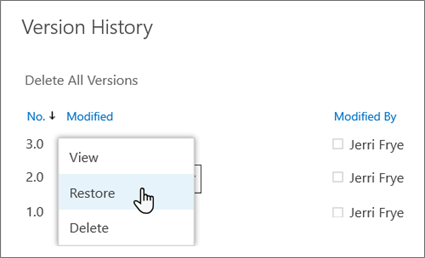
<ul><li><strong>Version History:</strong> Restore any file to a previous state (up to 500 versions back).</li><li><strong>Recycle Bin:</strong> Files deleted from OneDrive stay in the cloud recycle bin for 93 days.</li><li><strong>Second-Stage Bin:</strong> Admin usage for deeper recovery.</li></ul>
Case Study: Project Alpha Launch
<strong>Scenario:</strong> You are leading the 'Alpha' marketing campaign.<br><br><strong>Your Mission:</strong><br>1. Create a new folder 'Project Alpha'.<br>2. Upload the 'Budget.xlsx' file.<br>3. Share the *folder* with your table partner (Edit access).<br>4. Open 'Budget.xlsx' simultaneously and co-author a change.<br>5. Check Version History to see who did what.
Best Practices & Common Mistakes
<strong>DO:</strong><br>• Use specific folder names.<br>• Share links, not attachments.<br>• Sync only active projects to save disk space.<br>• Check the 'Sharing' column to see who has access.
<strong>DON'T:</strong><br>• Store personal music/photos in business OneDrive.<br>• Delete shared files locally without realizing it deletes for everyone.<br>• Break inheritance on subfolders unless necessary.
Knowledge Check
1. If you delete a file from your synced OneDrive folder on your PC, does it delete from the cloud?
2. What is the main difference between OneDrive and SharePoint?
3. How long do deleted items stay in the Recycle Bin?
Summary & Q&A
• OneDrive is for 'Me' files; Teams/SharePoint is for 'We'.<br>• Use Files On-Demand to save PC space.<br>• Share Links to maintain version control.<br>• Files are recoverable for 93 days.
[ Scan for Manual ]
- microsoft-onedrive
- cloud-storage
- business-productivity
- collaboration-tools
- file-management
- microsoft-365
- it-training