
Made byBobr AI

Pega Constellation: Connect REST Integration Walkthrough

Learn how to use the Pega Integration Wizard to create Connect REST rules, data pages, and automate data modeling from JSON responses.

#pega#pega-constellation#rest-api#integration#low-code#api-tutorial#dev-studio
Watch
Pitch

Connect REST Integration Walkthrough

In Pega Constellation

365DaysOfPega By ShirishaBoinapalli
Made byBobr AI

Why use the Integration Wizard?

  • Accelerates development by automatically generating data models from JSON responses.
  • Eliminates manual errors in class structure and property mapping.
  • Provides a visual interface to configure complex API connections (GET, POST, etc.).
  • Creates reusable Data Pages and Connect Rules instantly.
365DaysOfPega By ShirishaBoinapalli
Made byBobr AI

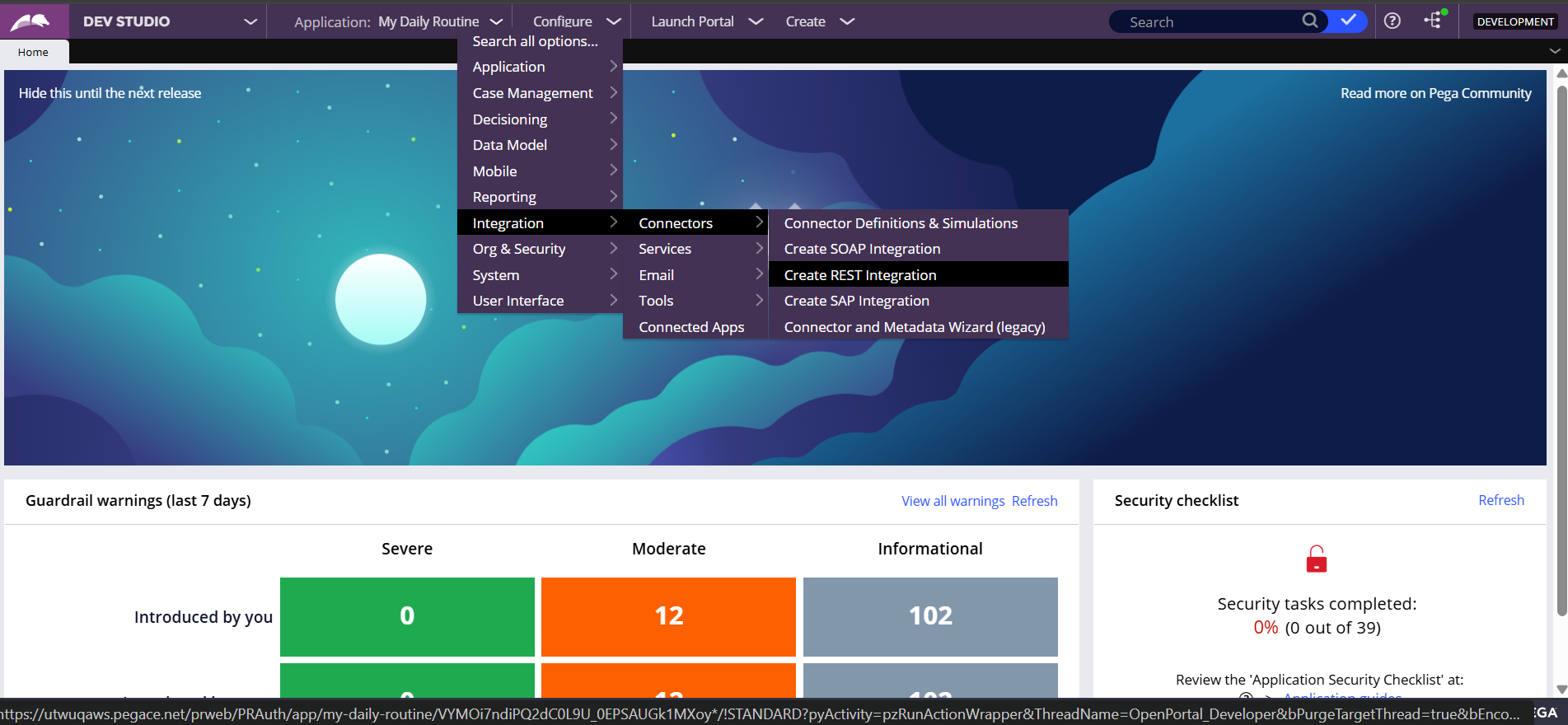
Step 1: Access the Wizard

Navigate to the Integration menu in Dev Studio. Select 'Connectors' and then 'Create REST Integration' to launch the guided wizard.

365DaysOfPega By ShirishaBoinapalli
Made byBobr AI

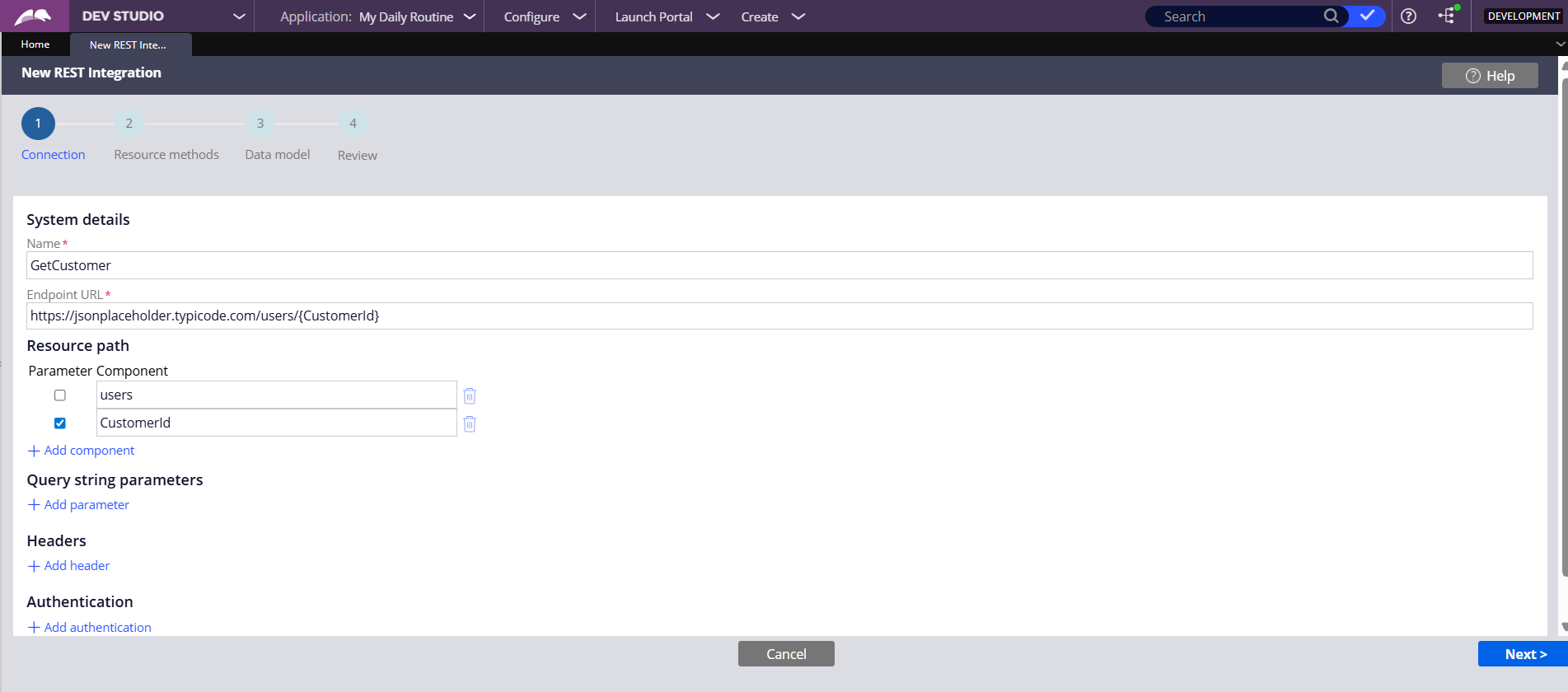
Step 2: Define Connection

Enter the Name and Endpoint URL. You can define dynamic resource path parameters, such as {CustomerId}, which will be mapped automatically.

365DaysOfPega By ShirishaBoinapalli
Made byBobr AI

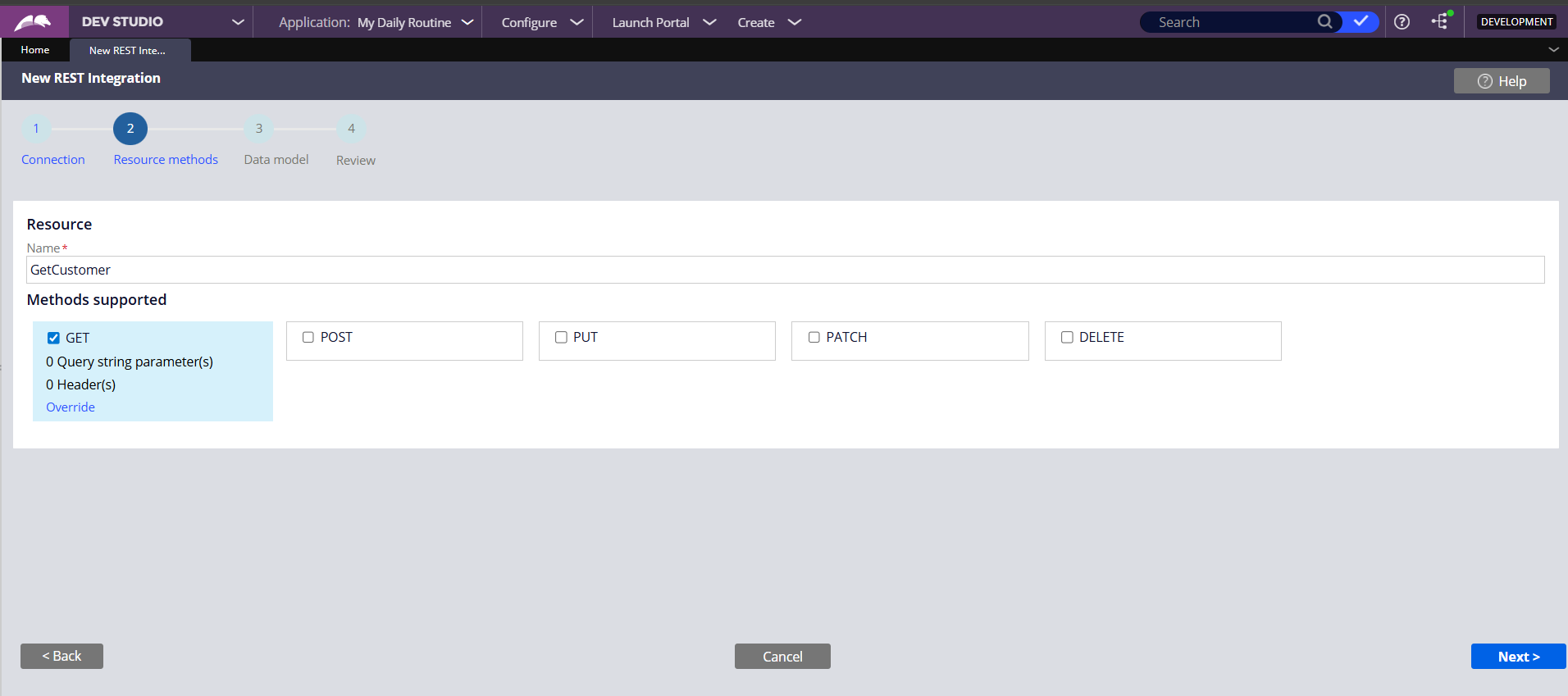
Step 3: Select Methods

Choose the HTTP methods required for your integration (GET, POST, PUT, etc.). Here, we select GET to retrieve customer information.

365DaysOfPega By ShirishaBoinapalli
Made byBobr AI

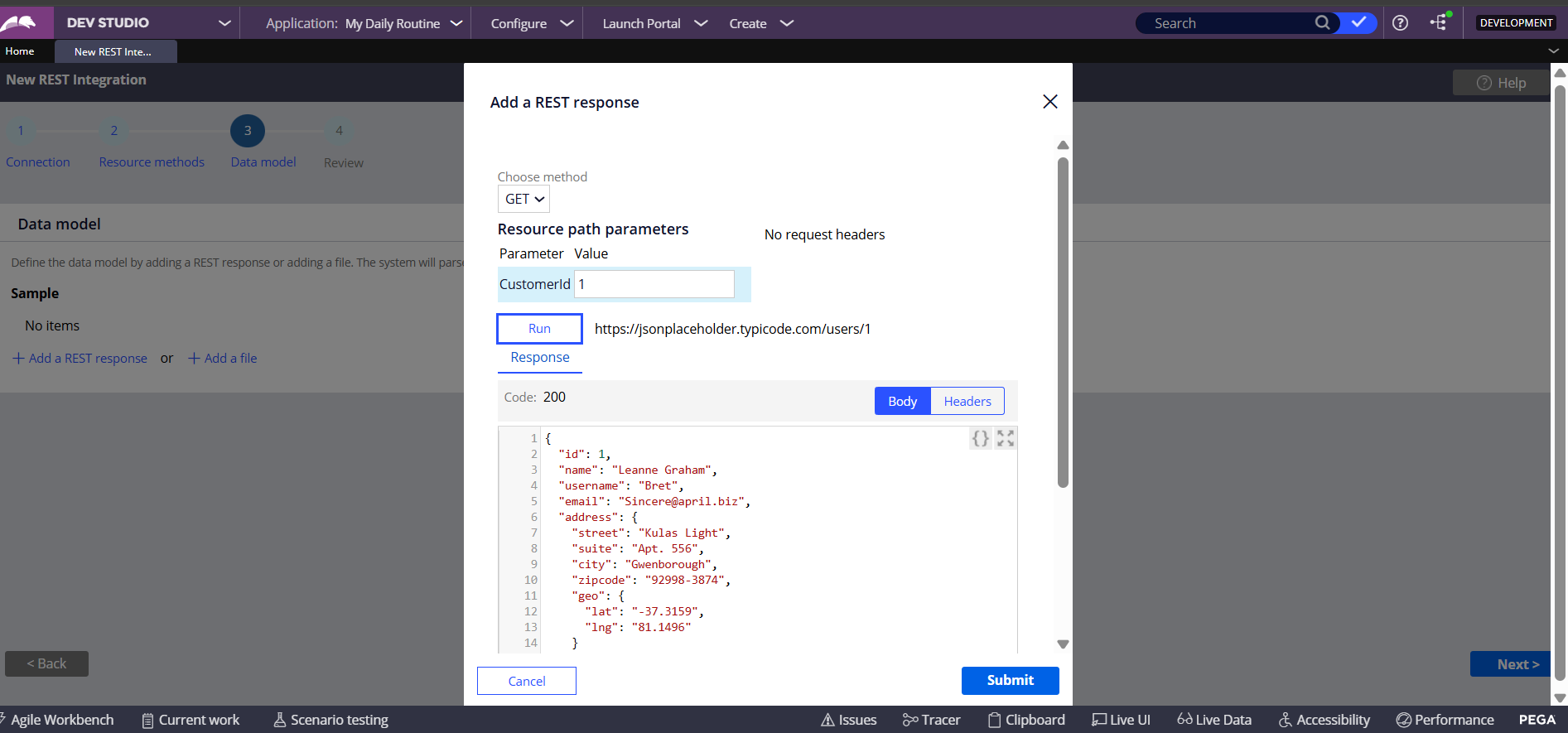
Step 4: Data Modeling

Test the connection with sample data directly in the wizard. The system parses the JSON response (e.g., name, email) to build the data model automatically.

365DaysOfPega By ShirishaBoinapalli
Made byBobr AI

Step 5: Review & Generate

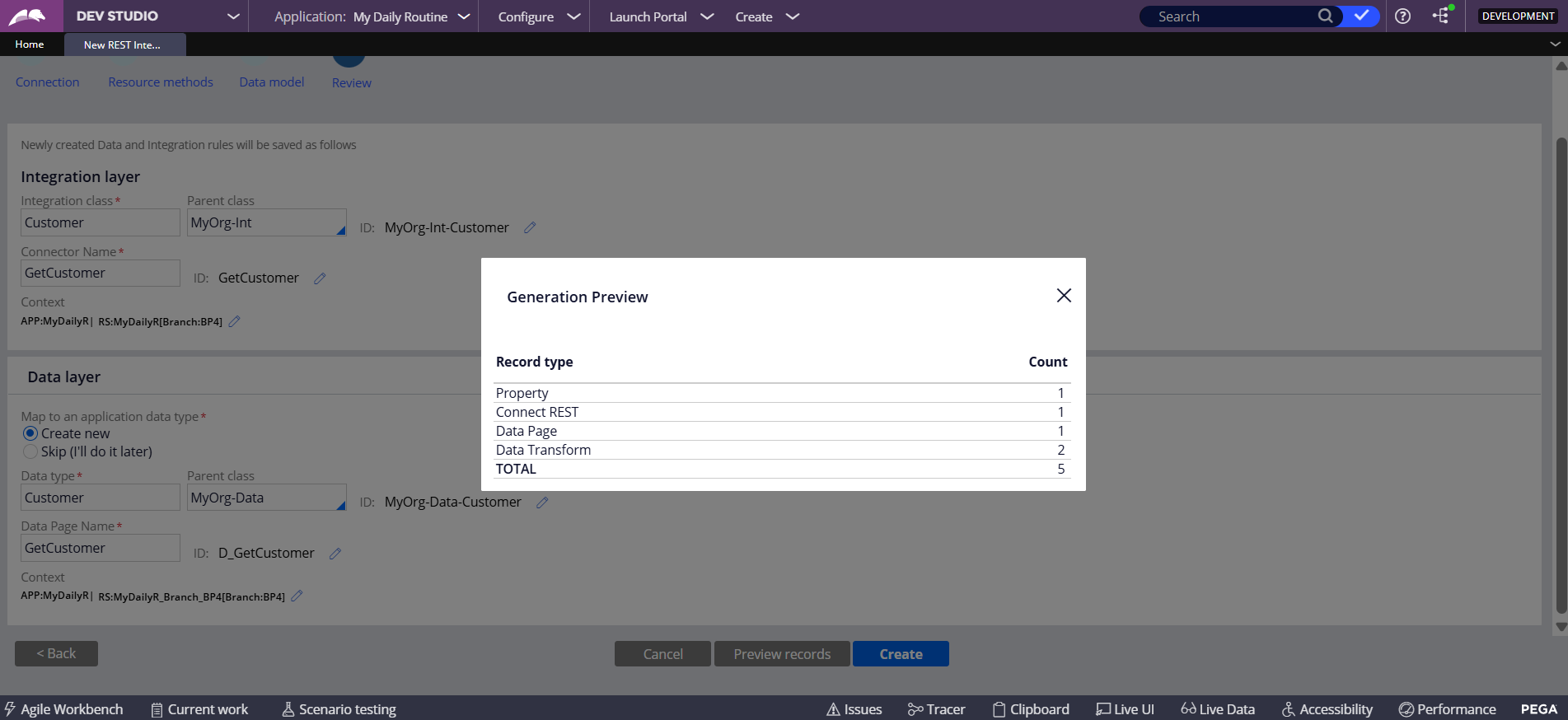
The 'Generation Preview' screens summarize the rules to be created: 1 Connect REST, 1 Data Page, 2 Data Transforms, and the necessary Classes.

365DaysOfPega By ShirishaBoinapalli
Made byBobr AI

Artifact: Connect REST Rule

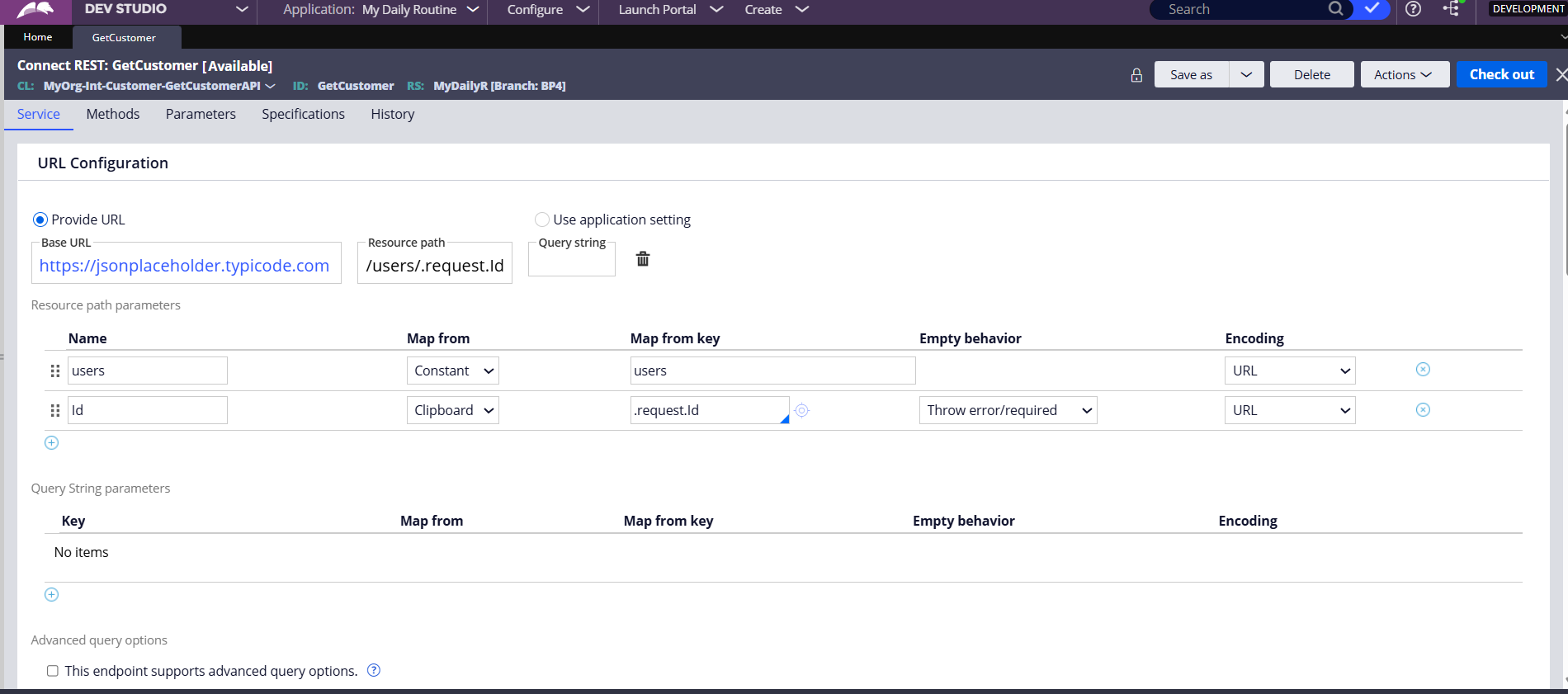
The wizard creates a Connect REST rule. This rule handles the technical details of the HTTP request, including URL mapping for the resource path.

365DaysOfPega By ShirishaBoinapalli
Made byBobr AI

Artifact: Data Page

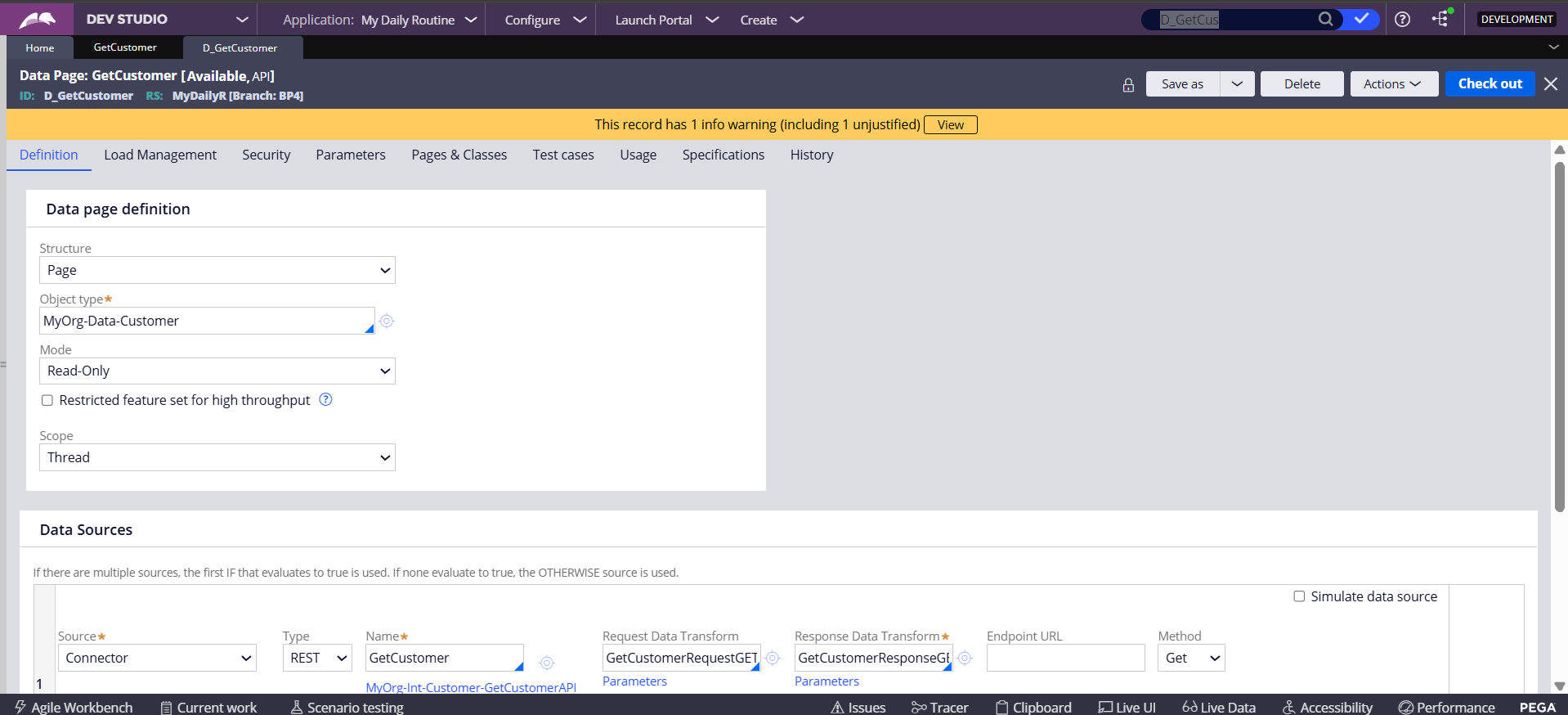
A Data Page (D_GetCustomer) wraps the connector. This separates the integration logic from the UI, making data easy to consume anywhere in the app.

365DaysOfPega By ShirishaBoinapalli
Made byBobr AI

Logic: Data Mapping

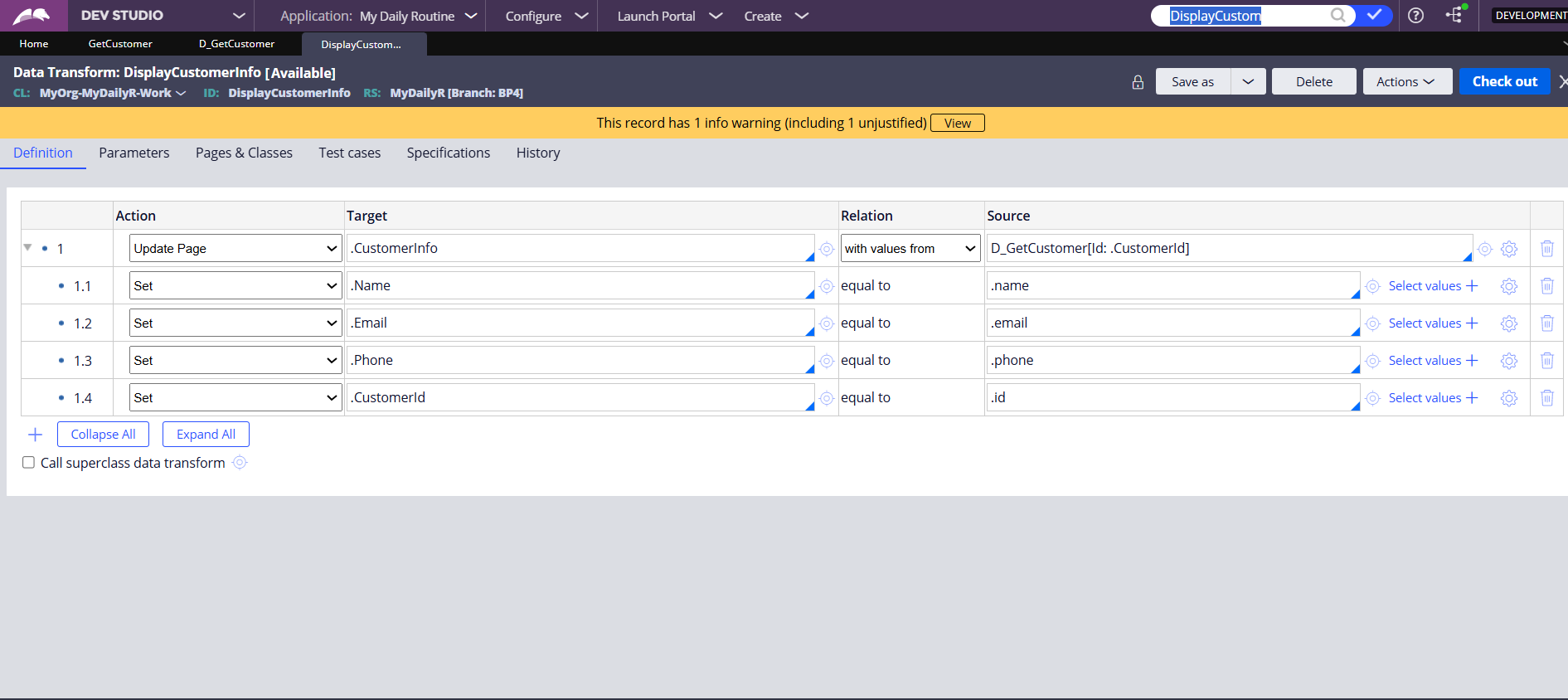
A Data Transform (e.g., 'DisplayCustomerInfo') is used to map properties from the Integration Data Page to your Work Object context.

365DaysOfPega By ShirishaBoinapalli
Made byBobr AI

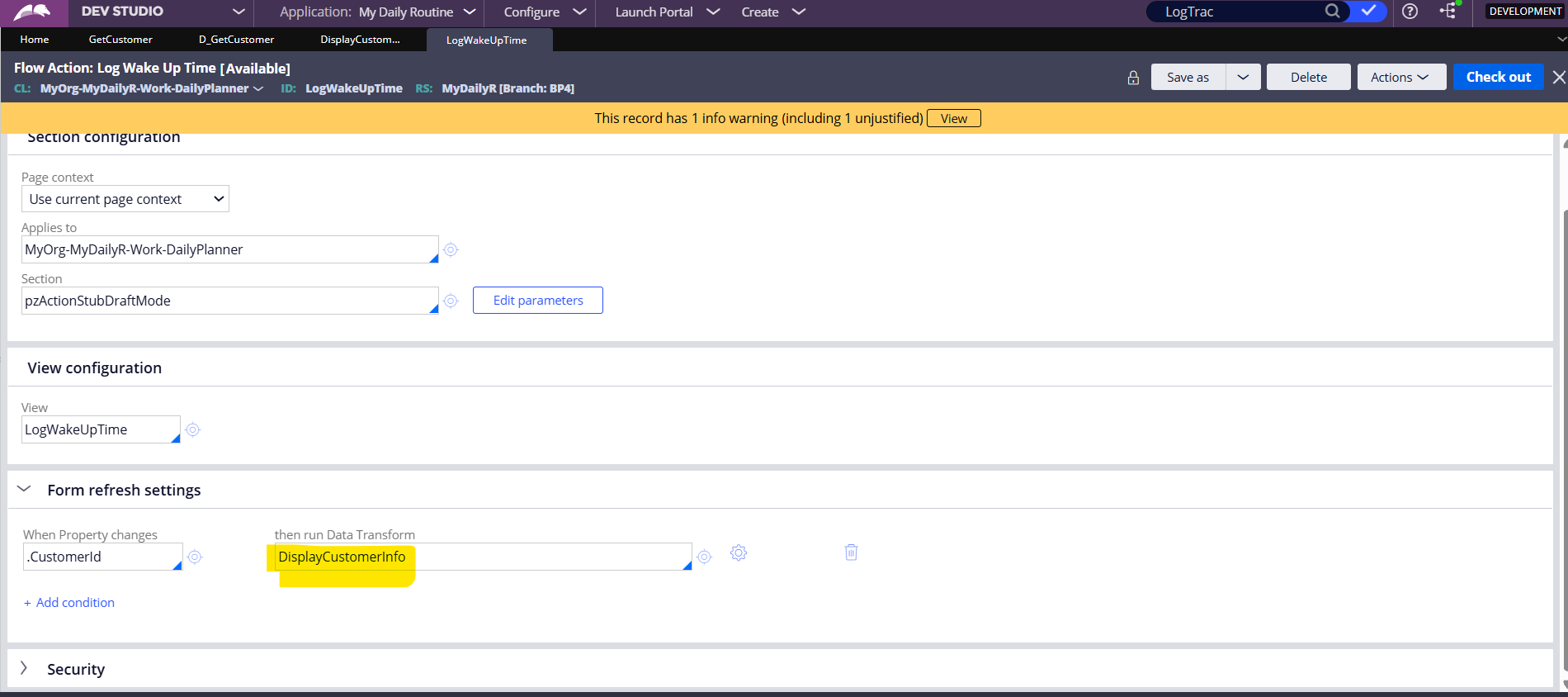
Implementation: UI Triggers

On the user interface, we configure an event: when the 'Customer Id' changes, the Data Transform runs to fetch and populate the fields.

365DaysOfPega By ShirishaBoinapalli
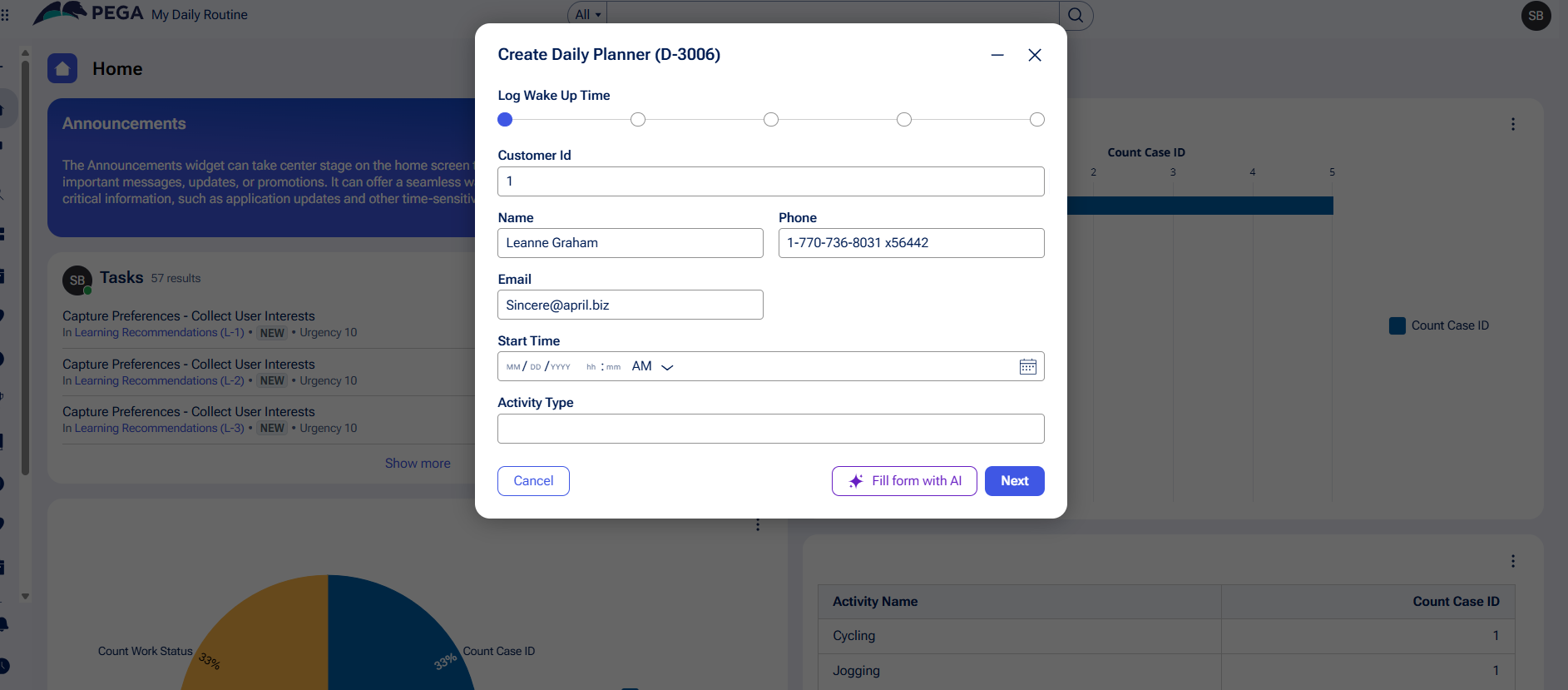
Made byBobr AI

Final Result

365DaysOfPega By ShirishaBoinapalli
Made byBobr AI
Bobr AI

DESIGNER-MADE
PRESENTATION,
GENERATED FROM
YOUR PROMPT

Create your own professional slide deck with real images, data charts, and unique design in under a minute.

Generate For Free

Pega Constellation: Connect REST Integration Walkthrough

Learn how to use the Pega Integration Wizard to create Connect REST rules, data pages, and automate data modeling from JSON responses.

Connect REST Integration Walkthrough

In Pega Constellation

Why use the Integration Wizard?

Accelerates development by automatically generating data models from JSON responses.

Eliminates manual errors in class structure and property mapping.

Provides a visual interface to configure complex API connections (GET, POST, etc.).

Creates reusable Data Pages and Connect Rules instantly.

Step 1: Access the Wizard

Navigate to the Integration menu in Dev Studio. Select 'Connectors' and then 'Create REST Integration' to launch the guided wizard.

Step 2: Define Connection

Enter the Name and Endpoint URL. You can define dynamic resource path parameters, such as {CustomerId}, which will be mapped automatically.

Step 3: Select Methods

Choose the HTTP methods required for your integration (GET, POST, PUT, etc.). Here, we select GET to retrieve customer information.

Step 4: Data Modeling

Test the connection with sample data directly in the wizard. The system parses the JSON response (e.g., name, email) to build the data model automatically.

Step 5: Review & Generate

The 'Generation Preview' screens summarize the rules to be created: 1 Connect REST, 1 Data Page, 2 Data Transforms, and the necessary Classes.

Artifact: Connect REST Rule

The wizard creates a Connect REST rule. This rule handles the technical details of the HTTP request, including URL mapping for the resource path.

Artifact: Data Page

A Data Page (D_GetCustomer) wraps the connector. This separates the integration logic from the UI, making data easy to consume anywhere in the app.

Logic: Data Mapping

A Data Transform (e.g., 'DisplayCustomerInfo') is used to map properties from the Integration Data Page to your Work Object context.

Implementation: UI Triggers

On the user interface, we configure an event: when the 'Customer Id' changes, the Data Transform runs to fetch and populate the fields.

Final Result

  • pega
  • pega-constellation
  • rest-api
  • integration
  • low-code
  • api-tutorial
  • dev-studio