

Made byBobr AI

Comprehensive Adobe Photoshop Toolbar Guide & Shortcuts

Master the Photoshop toolbar with this complete guide. Learn essential selection, retouching, and vector tools along with keyboard shortcut quick references.

#photoshop-tutorial#graphic-design#adobe-photoshop#design-tools#shortcuts#digital-art
Watch
Pitch
INTERFACE GUIDE

Photoshop Toolbar Explanation

A Comprehensive Guide to the Main Control Panel

Made byBobr AI

Overview

What is the Toolbar?

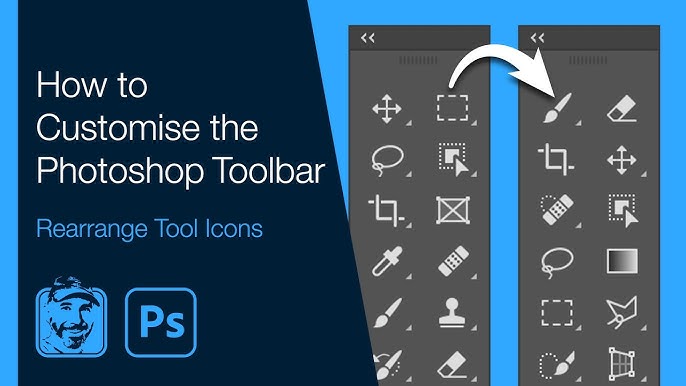
The Toolbar is the main control panel in Photoshop containing tools for moving, drawing, selecting, retouching, and editing.

Most tools have sub-tools indicated by a small arrow in the corner. Shortcut keys are typically written in brackets next to the tool name.

Toolbar Interface
Made byBobr AI

Navigation & Movement

1. Move Tool (V)

Used to move layers, images, and selections. Helps place design elements correctly. Always check layer selection first.

14. Hand Tool (H)

Moves the canvas view without moving the artwork itself. Commonly used while zoomed in to pan around.

15. Zoom Tool (Z)

Zoom in to work on fine details; zoom out to check overall composition.

Made byBobr AI

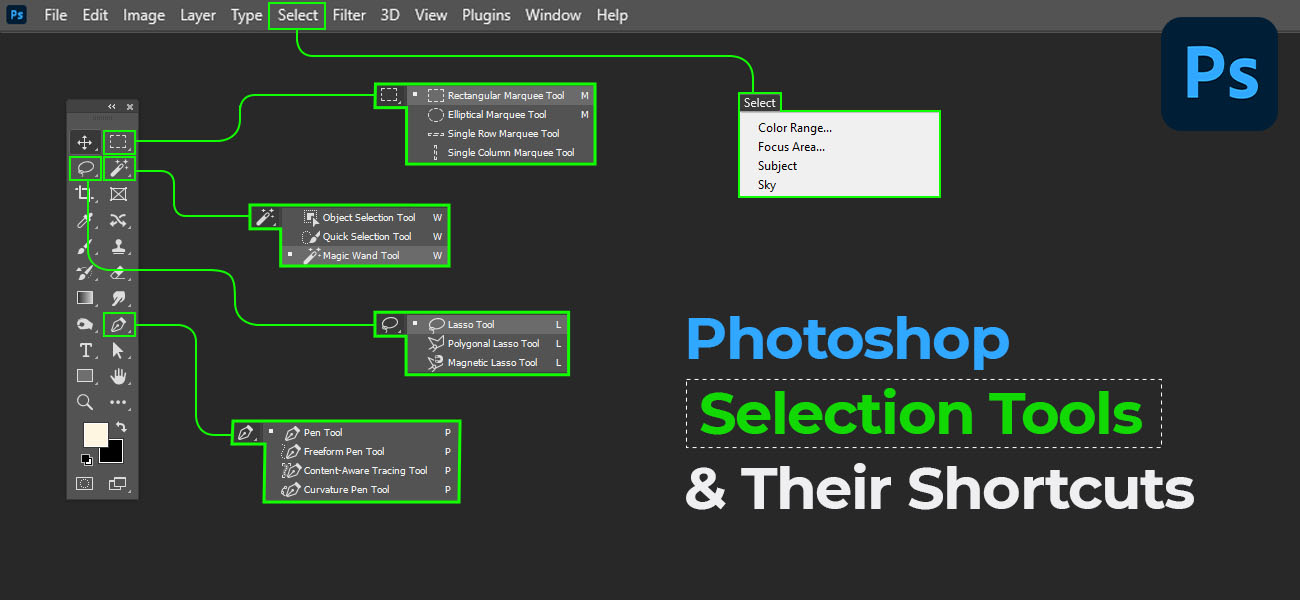
2. Selection Tools

Marquee Tools (M)

Select rectangular or elliptical areas. Helpful for borders, backgrounds, and cropping specific parts.

Lasso Tool (L)

Freehand selection for organic shapes or rough cuts.

Magic Wand / Quick Selection (W)

Selects areas automatically based on color or edges. Essential for removing backgrounds quickly.

Selection Tools
Made byBobr AI

Correction & Retouching

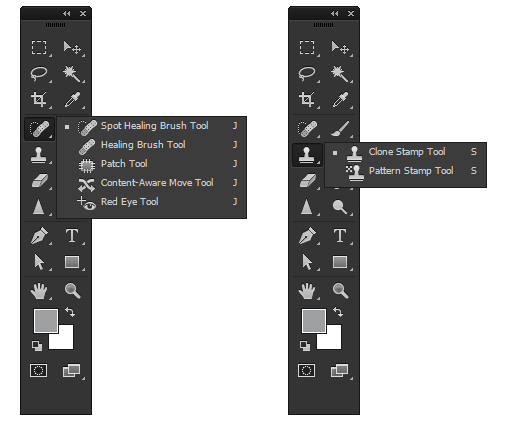
Healing Brush / Spot Healing (J)

Removes unwanted marks, dust, or skin spots. Commonly used in photo cleanup and realism work.

Clone Stamp Tool (S)

Copies one area and paints it over another. Used for detailed corrections.

7. Eraser Tool (E)

Erases pixels from the selected layer. Caution: erasing is permanent on raster layers.

Made byBobr AI

Composition & Color

C

3. Crop Tool (C)

Cut unwanted areas to improve framing. Always crop after finalizing design size.

I

4. Eyedropper Tool (I)

Picks precise colors from the image. Essential for color matching.

G

8. Gradient & Paint Bucket (G)

Gradient creates smooth transitions; Paint Bucket fills areas with solid color. Used for backgrounds.

Made byBobr AI

Creative Tools: Paint & Adjustment

6. Brush Tool (B)

Top artist tool used for sketching, shading, and line work. Adjust hardness/size regularly.

9. Blur / Sharpen / Smudge

Blur softens edges; Sharpen increases clarity; Smudge pushes pixels like paint.

10. Dodge & Burn

Dodge lightens areas (highlights); Burn darkens areas (shadows).

Made byBobr AI

Vectors & Typography

11. Pen Tool (P)

Creates precise line work and paths. Best for clean outlines and professional shapes. Vital for advanced control.

T

12. Type Tool (T)

Adds text for posters, titles, and typography work.

13. Path & Shape Tools

Creates vector shapes that remain sharp even when resized.

Made byBobr AI

Colors & Layer Panel

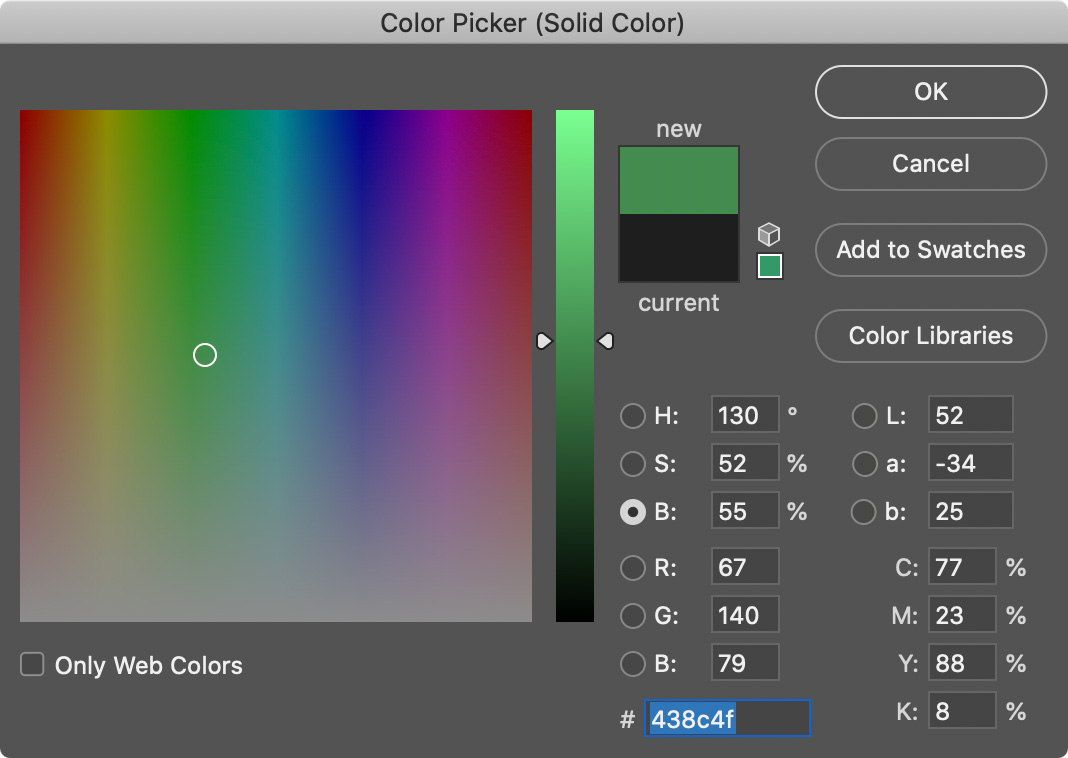
16. Colors

• Top box: Foreground Color • Bottom box: Background Color • Press 'X' to swap quickly.

17. Layer Shortcuts

• New Layer • New Group • Layer Mask • Selection Options

Essential for non-destructive editing.

Made byBobr AI

Shortcut Quick Reference

V - Move Tool M - Marquee L - Lasso W - Magic Wand C - Crop
I - Eyedropper J - Healing S - Clone Stamp B - Brush E - Eraser
G - Gradient P - Pen Tool T - Type Tool H - Hand Tool Z - Zoom
Made byBobr AI
Bobr AI

DESIGNER-MADE
PRESENTATION,
GENERATED FROM
YOUR PROMPT

Create your own professional slide deck with real images, data charts, and unique design in under a minute.

Generate For Free

Comprehensive Adobe Photoshop Toolbar Guide & Shortcuts

Master the Photoshop toolbar with this complete guide. Learn essential selection, retouching, and vector tools along with keyboard shortcut quick references.

Photoshop Toolbar Explanation

A Comprehensive Guide to the Main Control Panel

What is the Toolbar?

The Toolbar is the main control panel in Photoshop containing tools for moving, drawing, selecting, retouching, and editing.

Most tools have sub-tools indicated by a small arrow in the corner. Shortcut keys are typically written in brackets next to the tool name.

Navigation & Movement

1. Move Tool (V)

Used to move layers, images, and selections. Helps place design elements correctly. Always check layer selection first.

14. Hand Tool (H)

Moves the canvas view without moving the artwork itself. Commonly used while zoomed in to pan around.

15. Zoom Tool (Z)

Zoom in to work on fine details; zoom out to check overall composition.

2. Selection Tools

Marquee Tools (M)

Select rectangular or elliptical areas. Helpful for borders, backgrounds, and cropping specific parts.

Lasso Tool (L)

Freehand selection for organic shapes or rough cuts.

Magic Wand / Quick Selection (W)

Selects areas automatically based on color or edges. Essential for removing backgrounds quickly.

5. Healing & Retouching Tools

Healing Brush / Spot Healing (J)

Removes unwanted marks, dust, or skin spots. Commonly used in photo cleanup and realism work.

Clone Stamp Tool (S)

Copies one area and paints it over another. Used for detailed corrections.

7. Eraser Tool (E)

Erases pixels from the selected layer. Caution: erasing is permanent on raster layers.

Composition & Color

3. Crop Tool (C)

Cut unwanted areas to improve framing. Always crop after finalizing design size.

4. Eyedropper Tool (I)

Picks precise colors from the image. Essential for color matching.

8. Gradient & Paint Bucket (G)

Gradient creates smooth transitions; Paint Bucket fills areas with solid color. Used for backgrounds.

Creative Tools: Paint & Adjustment

Top artist tool used for sketching, shading, and line work. Adjust hardness/size regularly.

Blur softens edges; Sharpen increases clarity; Smudge pushes pixels like paint.

Dodge lightens areas (highlights); Burn darkens areas (shadows).

Vectors & Typography

11. Pen Tool (P)

Creates precise line work and paths. Best for clean outlines and professional shapes. Vital for advanced control.

12. Type Tool (T)

Adds text for posters, titles, and typography work.

13. Path & Shape Tools

Creates vector shapes that remain sharp even when resized.

Colors & Layer Panel

16. Colors

• Top box: Foreground Color • Bottom box: Background Color • Press 'X' to swap quickly.

17. Layer Shortcuts

• New Layer • New Group • Layer Mask • Selection Options

Shortcut Quick Reference

V - Move Tool M - Marquee L - Lasso W - Magic Wand C - Crop

I - Eyedropper J - Healing S - Clone Stamp B - Brush E - Eraser

G - Gradient P - Pen Tool T - Type Tool H - Hand Tool Z - Zoom

  • photoshop-tutorial
  • graphic-design
  • adobe-photoshop
  • design-tools
  • shortcuts
  • digital-art