






Made byBobr AI

Mastering Electronic Spreadsheets: Data to Analysis Guide

Learn electronic spreadsheets from basic components to advanced AI features. Covers Excel, Google Sheets, formulas, pivot tables, and data visualization.

#spreadsheets#microsoft-excel#google-sheets#data-analysis#pivot-tables#excel-formulas#software-tutorial

Electronic Spreadsheets

From Data Entry to Complex Analysis

abstract digital green data grid background, 3d isometric spreadsheet aesthetic, clean modern business style
Made byBobr AI

What is an Electronic Spreadsheet?

An electronic spreadsheet is a software tool used to organize, store, and analyze data in a tabular form. It essentially simulates a paper worksheet but adds computational power, automation, and dynamic updating capabilities.

• Organizes data into rows and columns
• Performs mathematical calculations automatically
• Visualizes data through charts and graphs
person using a laptop with a glowing spreadsheet interface, focus on data analysis, professional office setting
Made byBobr AI

A Brief History

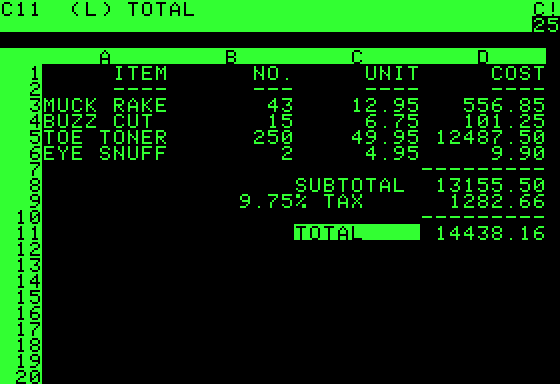
• 1979: VisiCalc - The first electronic spreadsheet for the Apple II.
• 1983: Lotus 1-2-3 - Became the industry standard for DOS.
• 1985: Microsoft Excel - Launched for Mac, later Windows.
• 2006: Google Sheets - Pioneered cloud-based collaboration.
VisiCalc screenshot apple II computer screen vintage
Made byBobr AI

Popular Modern Tools

While the core functionality remains similar, different users prefer different platforms based on their ecosystem.

Microsoft Excel
Industry standard, powerful features.

Google Sheets
Web-based, best for realtime collaboration.

LibreOffice Calc
Open-source, free alternative.
Microsoft Excel Apple Numbers Google Sheets logos icon collage
Made byBobr AI

Key Components

Rows & Columns

Horizontal Rows (labeled by Numbers 1,2,3...) and Vertical Columns (labeled by Letters A,B,C...) form the basic grid structure.

Cells & Active Cell

The intersection of a row and column is a Cell (e.g., A1, B5). The Active Cell is the one currently selected with a thick border.

minimalist illustration of spreadsheet grid highlighting row number 5 and column C intersecting at a cell
Made byBobr AI

Data Types

• Labels (Text): Alphanumeric characters usually used for headings and names.
• Values (Numbers): Numerical data used for calculations.
• Dates/Times: Special formats recognized as sequential values.
• Booleans: TRUE or FALSE logical values.
abstract 3d icons representing text, numbers, calendar date and boolean logic, clean white background
Made byBobr AI

Formulas: The Power of Calculation

A formula is an expression that operates on values in a range of cells. All formulas must start with an equals sign (=).
= 5 + 2 (Returns 7)
= A1 + A2 (Adds value of A1 and A2)
= C5 * 0.5 (Multiplies C5 by 50%)
= (A1+B1)/2 (Calculates average manually)
Made byBobr AI

Essential Functions

Functions are predefined formulas that perform calculations using specific values (arguments) in a particular order.

  • SUM(A1:A10): Adds all numbers in the range.
  • AVERAGE(B1:B20): Calculates the arithmetic mean.
  • MIN(C1:C5): Returns the smallest number.
  • MAX(D1:D5): Returns the largest number.
  • COUNT(A1:A10): Counts cells containing numbers.
Made byBobr AI

Relative vs. Absolute Referencing

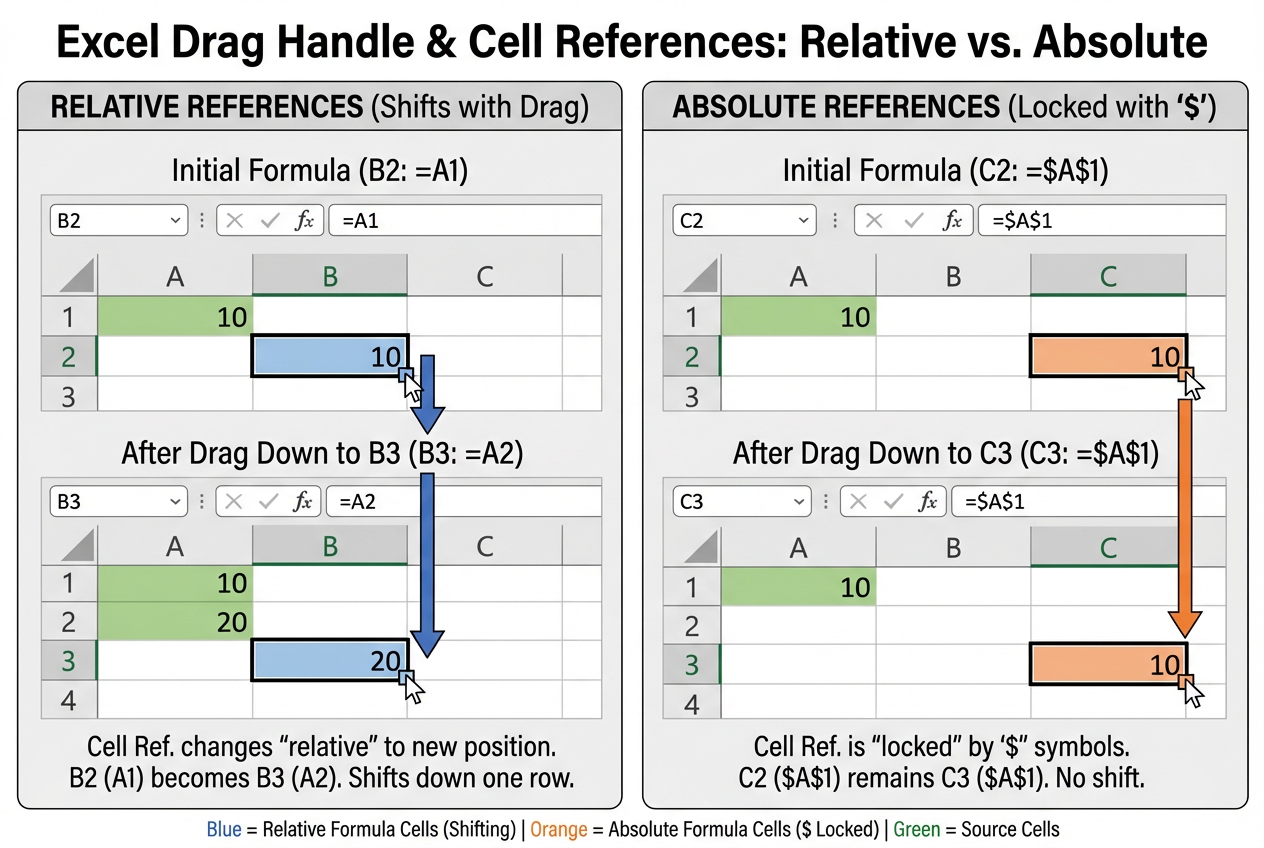
Relative Reference (A1)
Adjusts automatically when copied to another cell. If you copy a formula down one row, A1 becomes A2.
Absolute Reference ($A$1)
Specifically locks the row and/or column. $A$1 does not change when copied elsewhere.
diagram showing excel drag handle action changing cell references relative vs absolute
Made byBobr AI

Conditional Formatting

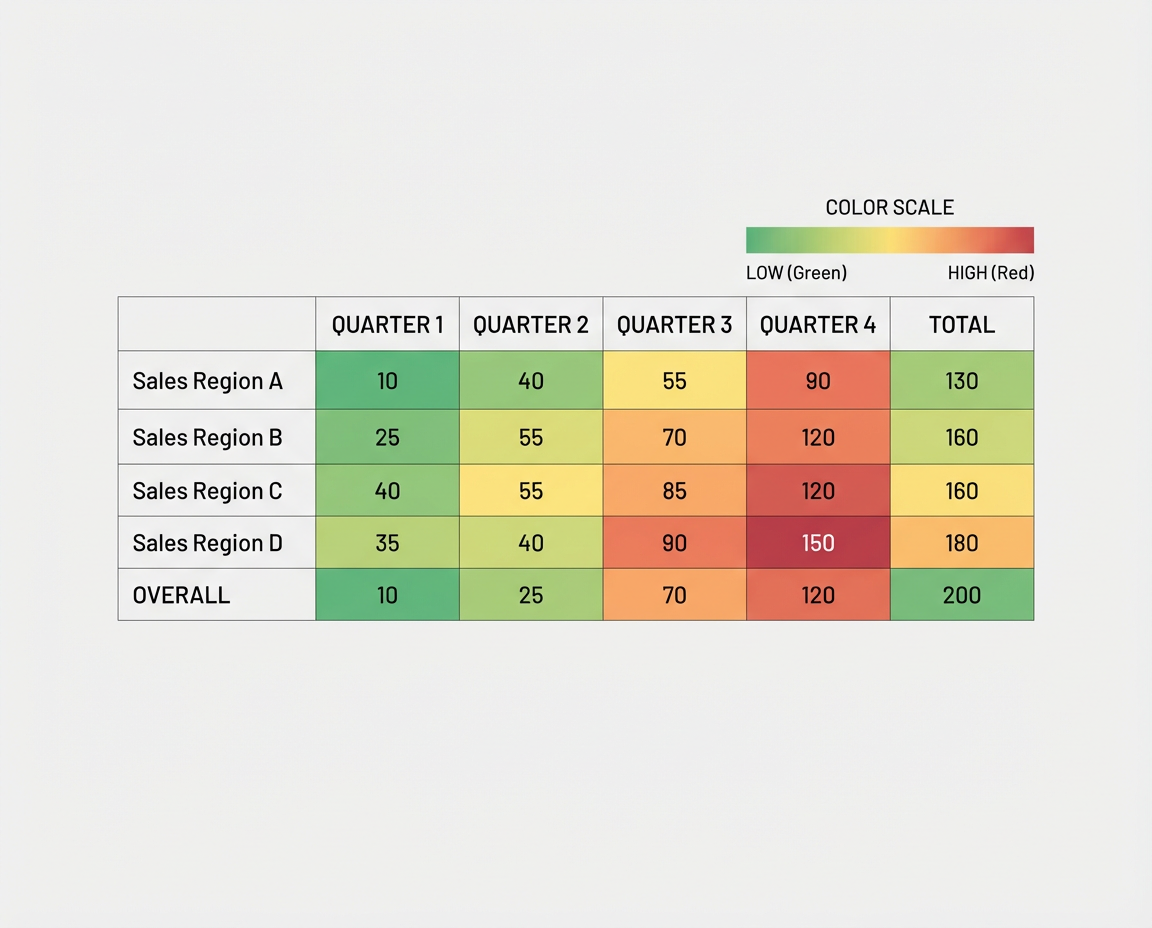
Allows you to apply specific formatting to cells that meet certain criteria. It is crucial for visual data analysis.

• Highlight values above average
• Color scales (Heat maps)
• Data bars inside cells
• Highlight duplicates
spreadsheet visual showing a color scale heat map green to red on numerical data
Made byBobr AI

Visualizing Data with Charts

Charts transform raw numbers into visual stories. Below shows typical business usage of spreadsheets.

Chart
Made byBobr AI

Sorting & Filtering

Sorting: Organizing data in a specific order (e.g., A to Z, Smallest to Largest). Helps in ranking and quick lookup.
Filtering: Displaying only the rows that meet certain criteria (e.g., showing only employees in the 'Sales' department). Essential for managing large datasets.
icon illustration of a funnel processing data rows, modern UI style
Made byBobr AI

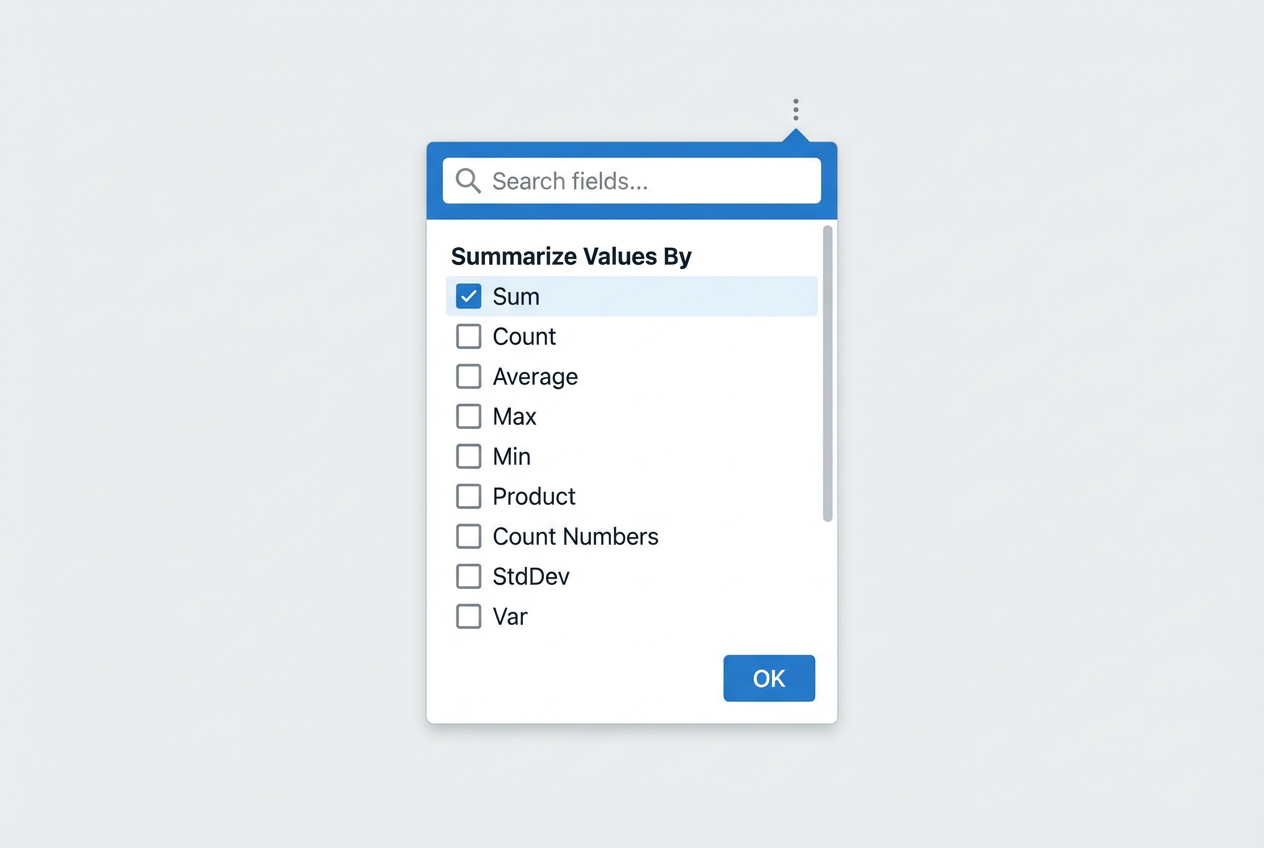
Pivot Tables

A powerful feature that allows you to summarize significant amounts of data. It can reorganize, count, total, or average data stored in one table and display the results in a second table.

Example: Turning a list of 1000 sales transactions into a summary table showing 'Total Revenue per Region'.

screenshot-style illustration of a pivot table summarize menu interface
Made byBobr AI

Collaboration & Pros/Cons

Advantages

  • Real-time collaboration (Cloud)
  • Automated calculations
  • Versatile for many industries
  • Portable formats (CSV, XLSX)

Disadvantages

  • User entry errors (Typographical)
  • Not suitable for massive big data (1M+ rows)
  • Security risks if not protected
  • Version control issues (Offline)
Made byBobr AI

The Future: AI in Spreadsheets

The next generation of spreadsheets is powered by AI (e.g., Microsoft Copilot, Google Duet AI).

Natural Language Queries: 'Show me top sales' instead of writing formulas.
Auto-Pattern Recognition: Detecting trends automatically.
Predictive Analytics: Forecasting future data based on history.
futuristic digital brain connecting to spreadsheet data cells, artificial intelligence concept, cyan and green neon colors
Made byBobr AI
Bobr AI

DESIGNER-MADE
PRESENTATION,
GENERATED FROM
YOUR PROMPT

Create your own professional slide deck with real images, data charts, and unique design in under a minute.

Generate For Free

Mastering Electronic Spreadsheets: Data to Analysis Guide

Learn electronic spreadsheets from basic components to advanced AI features. Covers Excel, Google Sheets, formulas, pivot tables, and data visualization.

Electronic Spreadsheets

From Data Entry to Complex Analysis

What is an Electronic Spreadsheet?

An electronic spreadsheet is a software tool used to organize, store, and analyze data in a tabular form. It essentially simulates a paper worksheet but adds computational power, automation, and dynamic updating capabilities.

• Organizes data into rows and columns<br>• Performs mathematical calculations automatically<br>• Visualizes data through charts and graphs

A Brief History

• 1979: VisiCalc - The first electronic spreadsheet for the Apple II.<br>• 1983: Lotus 1-2-3 - Became the industry standard for DOS.<br>• 1985: Microsoft Excel - Launched for Mac, later Windows.<br>• 2006: Google Sheets - Pioneered cloud-based collaboration.

Popular Modern Tools

While the core functionality remains similar, different users prefer different platforms based on their ecosystem.

<strong>Microsoft Excel</strong><br>Industry standard, powerful features.<br><br><strong>Google Sheets</strong><br>Web-based, best for realtime collaboration.<br><br><strong>LibreOffice Calc</strong><br>Open-source, free alternative.

Key Components

Rows & Columns

Horizontal Rows (labeled by Numbers 1,2,3...) and Vertical Columns (labeled by Letters A,B,C...) form the basic grid structure.

Cells & Active Cell

The intersection of a row and column is a Cell (e.g., A1, B5). The Active Cell is the one currently selected with a thick border.

Data Types

• Labels (Text): Alphanumeric characters usually used for headings and names.<br>• Values (Numbers): Numerical data used for calculations.<br>• Dates/Times: Special formats recognized as sequential values.<br>• Booleans: TRUE or FALSE logical values.

Formulas: The Power of Calculation

A formula is an expression that operates on values in a range of cells. All formulas must start with an equals sign (=).

<code>= 5 + 2</code> (Returns 7)<br><code>= A1 + A2</code> (Adds value of A1 and A2)<br><code>= C5 * 0.5</code> (Multiplies C5 by 50%)<br><code>= (A1+B1)/2</code> (Calculates average manually)

Essential Functions

Functions are predefined formulas that perform calculations using specific values (arguments) in a particular order.

<ul><li><strong>SUM(A1:A10)</strong>: Adds all numbers in the range.</li><li><strong>AVERAGE(B1:B20)</strong>: Calculates the arithmetic mean.</li><li><strong>MIN(C1:C5)</strong>: Returns the smallest number.</li><li><strong>MAX(D1:D5)</strong>: Returns the largest number.</li><li><strong>COUNT(A1:A10)</strong>: Counts cells containing numbers.</li></ul>

Relative vs. Absolute Referencing

<strong>Relative Reference (A1)</strong><br>Adjusts automatically when copied to another cell. If you copy a formula down one row, A1 becomes A2.

<strong>Absolute Reference ($A$1)</strong><br>Specifically locks the row and/or column. $A$1 does not change when copied elsewhere.

Conditional Formatting

Allows you to apply specific formatting to cells that meet certain criteria. It is crucial for visual data analysis.

• Highlight values above average<br>• Color scales (Heat maps)<br>• Data bars inside cells<br>• Highlight duplicates

Visualizing Data with Charts

Charts transform raw numbers into visual stories. Below shows typical business usage of spreadsheets.

Sorting & Filtering

<strong>Sorting:</strong> Organizing data in a specific order (e.g., A to Z, Smallest to Largest). Helps in ranking and quick lookup.

<strong>Filtering:</strong> Displaying only the rows that meet certain criteria (e.g., showing only employees in the 'Sales' department). Essential for managing large datasets.

Pivot Tables

A powerful feature that allows you to summarize significant amounts of data. It can reorganize, count, total, or average data stored in one table and display the results in a second table.

Example: Turning a list of 1000 sales transactions into a summary table showing 'Total Revenue per Region'.

Collaboration & Pros/Cons

<h3 style='color:#1D6F42; margin-bottom:15px;'>Advantages</h3><ul><li>Real-time collaboration (Cloud)</li><li>Automated calculations</li><li>Versatile for many industries</li><li>Portable formats (CSV, XLSX)</li></ul>

<h3 style='color:#b71c1c; margin-bottom:15px;'>Disadvantages</h3><ul><li>User entry errors (Typographical)</li><li>Not suitable for massive big data (1M+ rows)</li><li>Security risks if not protected</li><li>Version control issues (Offline)</li></ul>

The Future: AI in Spreadsheets

The next generation of spreadsheets is powered by AI (e.g., Microsoft Copilot, Google Duet AI).

• <strong>Natural Language Queries:</strong> 'Show me top sales' instead of writing formulas.<br>• <strong>Auto-Pattern Recognition:</strong> Detecting trends automatically.<br>• <strong>Predictive Analytics:</strong> Forecasting future data based on history.

  • spreadsheets
  • microsoft-excel
  • google-sheets
  • data-analysis
  • pivot-tables
  • excel-formulas
  • software-tutorial