



How to Create a Digital Table Calendar Flipbook from PDF
Learn how to transform static PDFs into interactive 3D table calendars with vertical flip effects, design best practices, and platform configurations.
Digital Table Calendar Flipbook
Transforming Static PDFs into Interactive 3D Experiences
The Concept: Table Calendar Effect
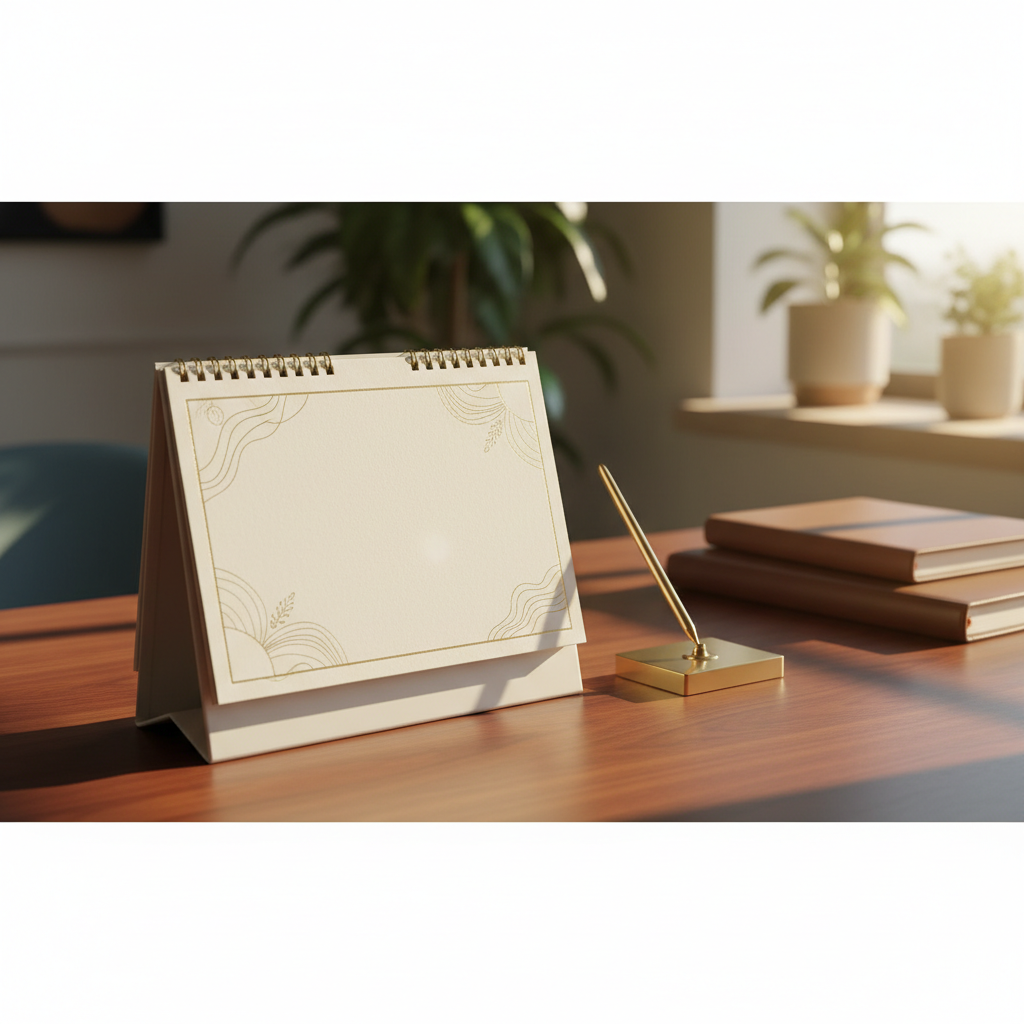
Unlike standard flipbooks that open horizontally like a novel, a table calendar effect mimics a vertical standing structure. It uses top-bound spiral physics, drop shadows allowing the book to 'stand' on a digital surface, and single-page flipping motion to replicate the feel of a desk accessory.
Why Use This Format?
Aesthetic Appeal: Offers a unique, cleaner look compared to traditional side-by-side spreads.
Screen Optimization: Fits better on mobile screens in portrait mode due to the single-page vertical layout.
Nostalgia: Evokes the tangible feeling of organizing time on a physical desk.
Step 1: Preparing Your PDF
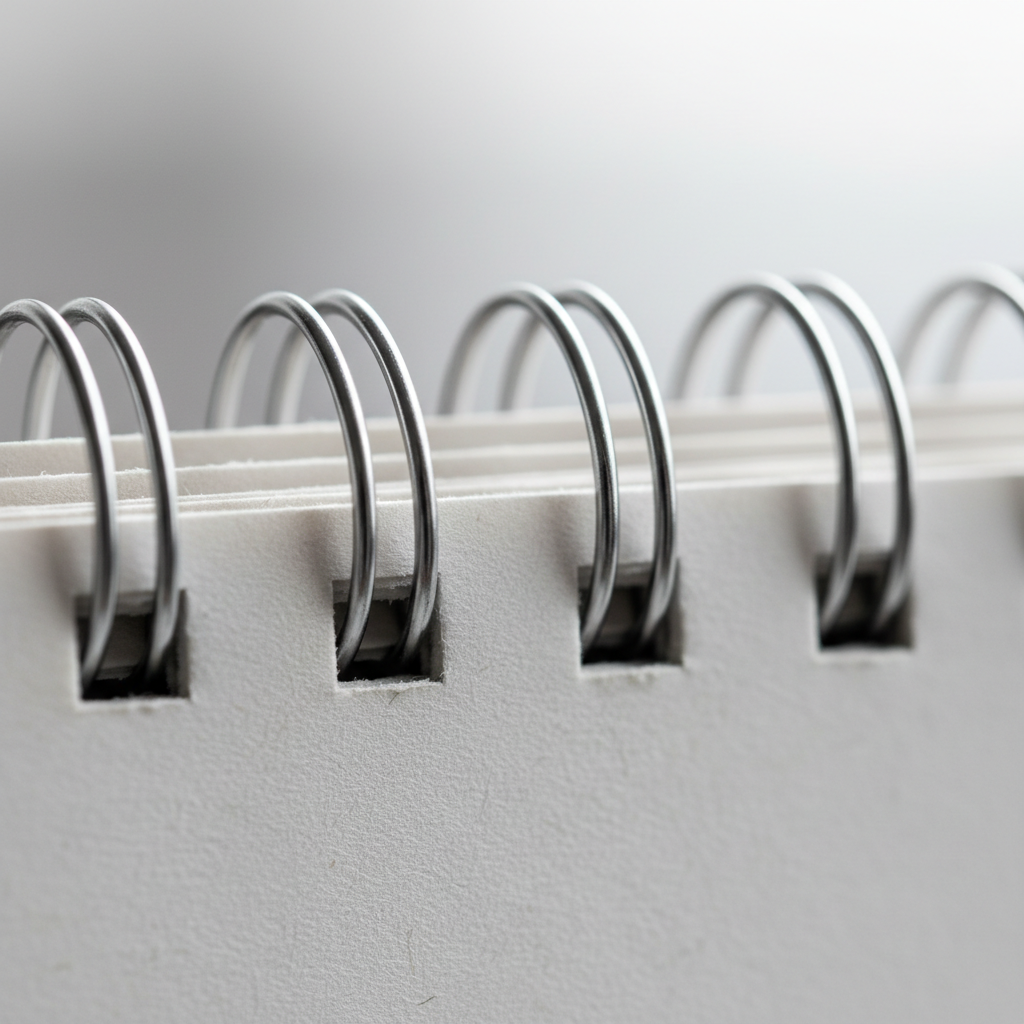
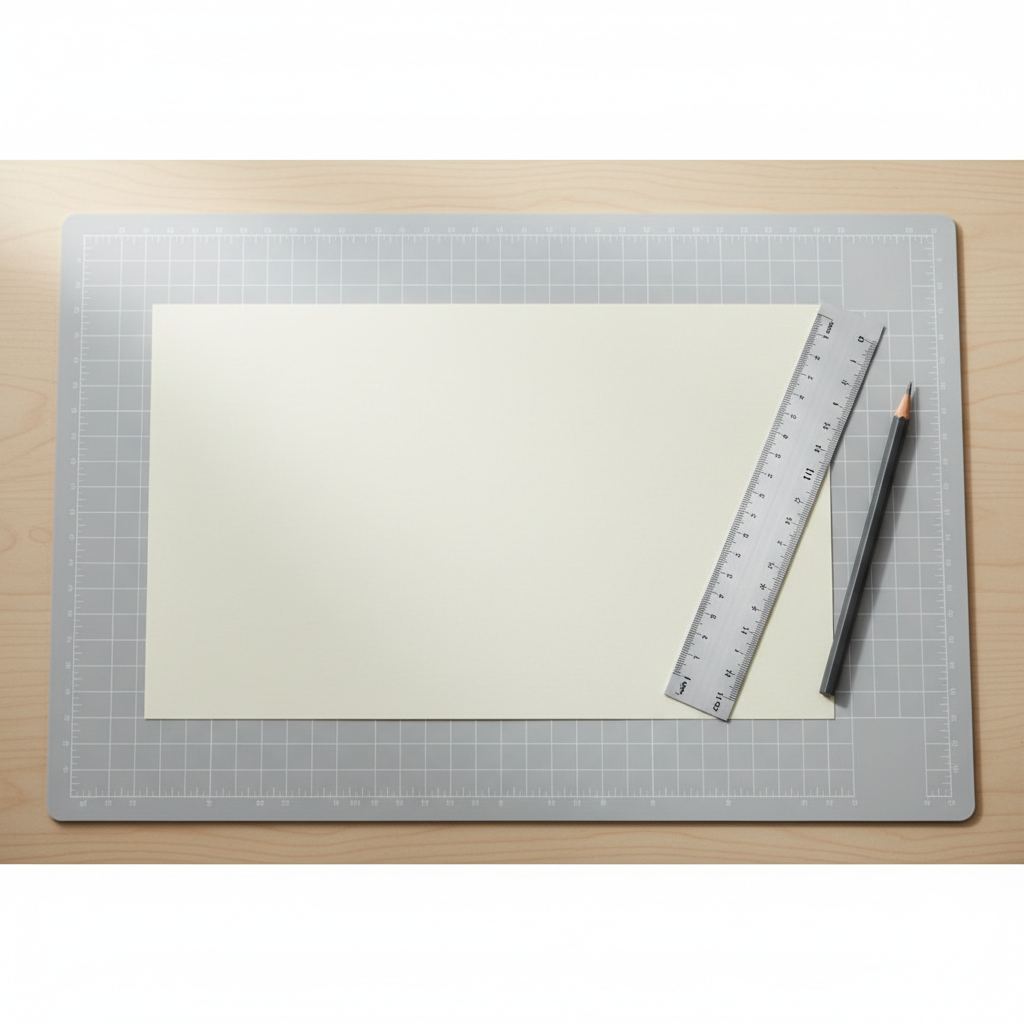
The foundational step happens before you open any flipbook software. Design your PDF in landscape orientation (e.g., 16:9 or A5 Landscape). Ensure you leave extra margin space at the top of the design where the virtual 'spiral binding' will be placed, so no important text gets punched through.
Step 2: Choosing the Platform
Select a digital publishing tool that supports 'Vertical Flip' or 'Slide Mode'. Standard flipbooks turn left-to-right, but a calendar needs a top-to-bottom transition. Tools like FlipHTML5, Heyzine, or AnyFlip often offer specific settings for this directional change.
Step 3: Configuring the View Mode
Set 'Page Mode' to Single Page (never Double Page).
Change 'Flip Direction' to Vertical.
Enable 'Hard Cover' to simulate the rigid backing stand of a desk calendar.
Visual context is everything. The background sells the illusion of the physical object.
Design Best Practices
Step 4: Creating the Atmosphere
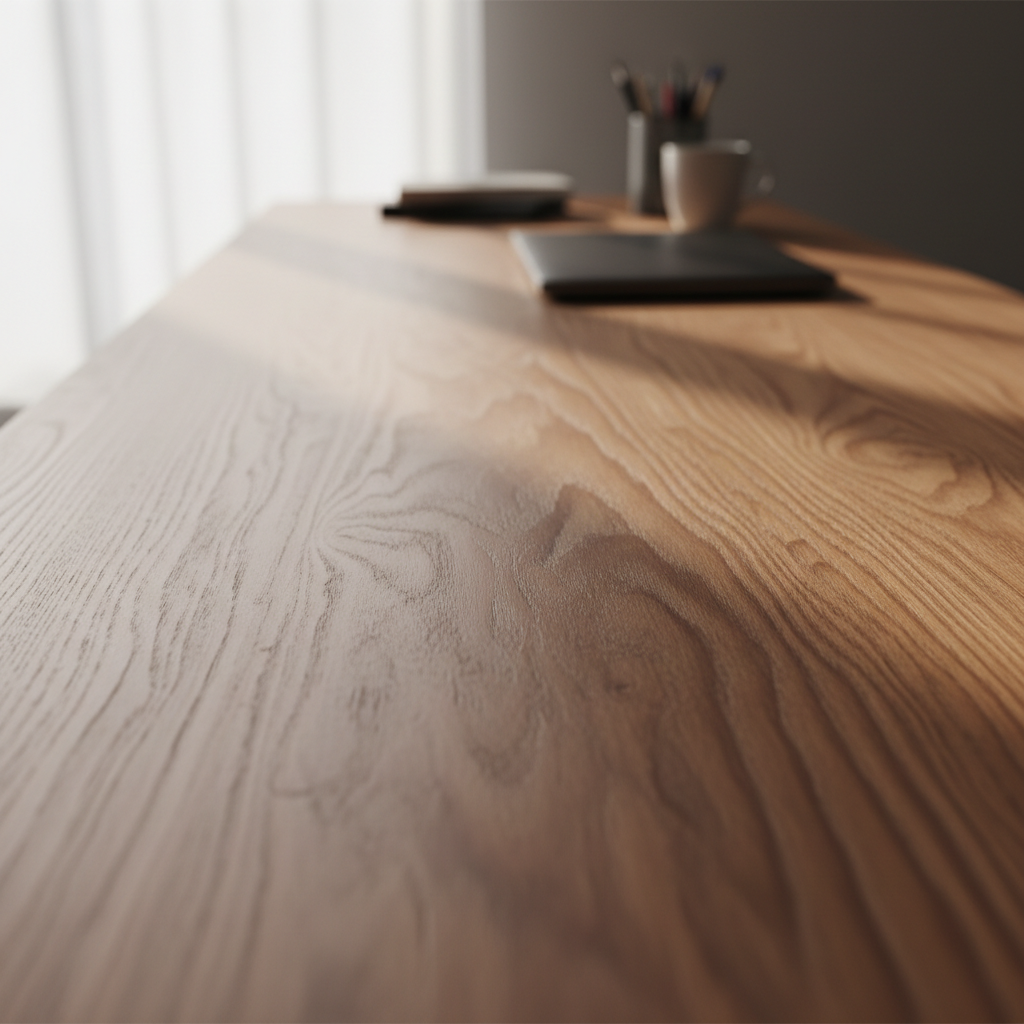
Upload a background image for your viewer that mimics a desk surface (wood, marble, or tech mat). Add drop shadows behind the flipbook container. This creates a trompe-l'œil effect, tricking the eye into seeing a 3D object standing on a surface rather than a flat PDF.
Final Polish
Flip Speed: Slow down the page turn animation to give it weight.
Sound FX: Enable 'Paper Flip' sounds for auditory feedback.
Navigation: Use large, clear arrows on the sides, as scrolling might be disabled to preserve the 'stand' view.
Ready to Share
- flipbook-design
- pdf-to-flipbook
- digital-calendar
- interactive-design
- graphic-design-tips
- content-creation