



Made byBobr AI

Mastering Google Slides: Guide to Professional Sales Pitches

Learn how to create, format, and edit high-impact sales presentations in Google Slides with this step-by-step professional workflow.

#google-slides#sales-pitch#presentation-skills#pitch-deck#marketing-strategy#tutorial#business-productivity
Watch
Pitch

How to Create, Format, and Edit Presentations

A step-by-step workflow: Create, Format, Edit

Made byBobr AI

Workflow: Create, Format, Edit

1. CREATE: Plan Structure & Content

2. FORMAT: Themes, Fonts & Colors

3. EDIT: Refine Text, Media, & Data

4. REVIEW: Polish & Rehearse

Made byBobr AI

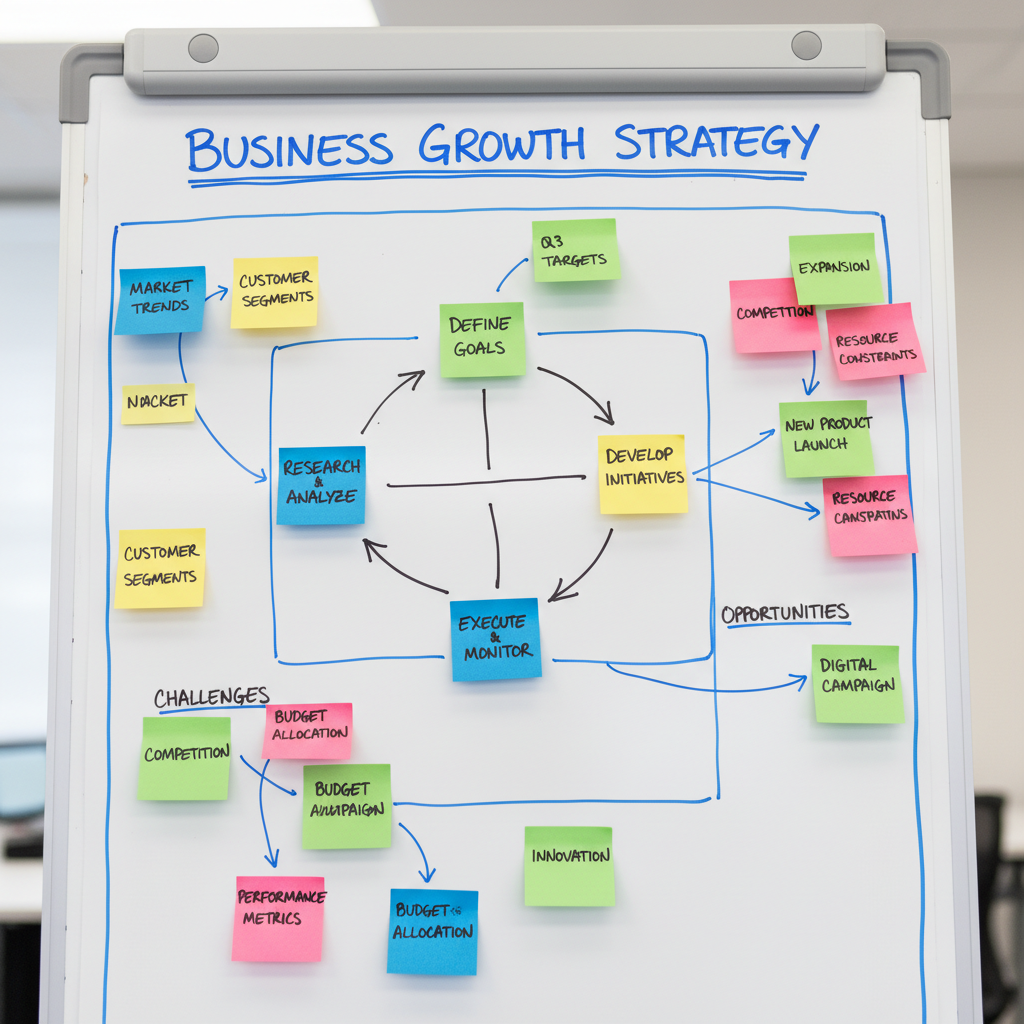
Step 1: CREATE - Plan Your Narrative

  • Define the 'Big Idea': What problem are you solving for the client?
  • Structure the flow: Hook → Problem → Solution → Evidence → Call to Action.
  • Do not open Google Slides yet. Use a Google Doc to outline text first.
Made byBobr AI

Step 2: FORMAT - Set the Master Theme

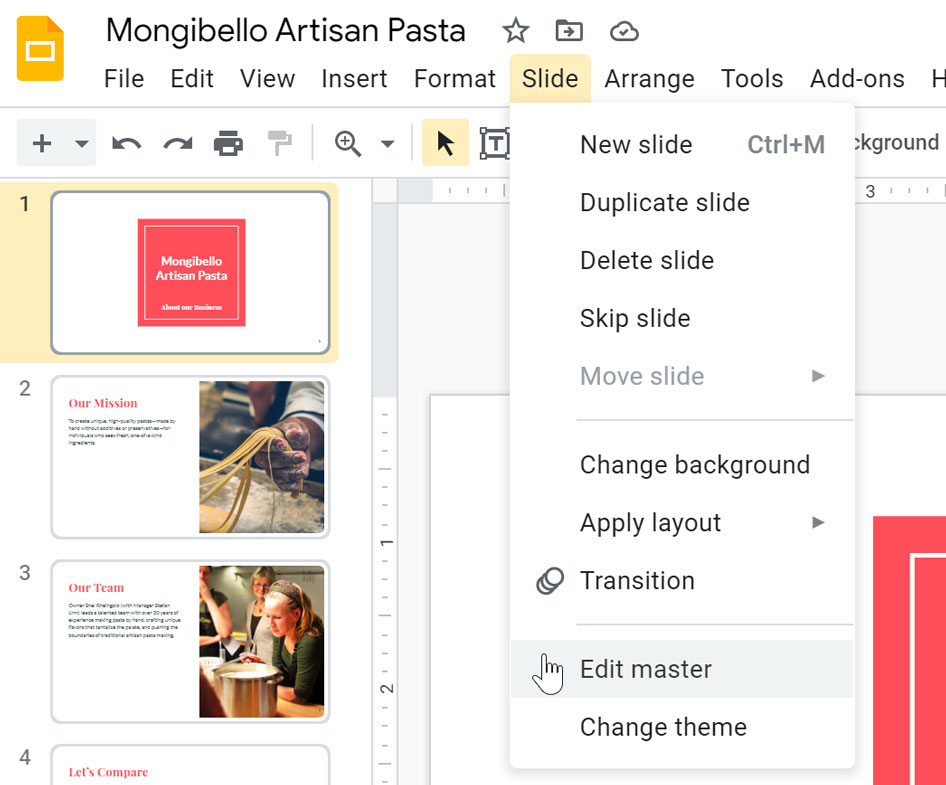
1. Don't format slide-by-slide. Go to Slide > Edit Theme to format the entire deck at once.

2. Set your corporate fonts (e.g., Roboto, Open Sans) on the master layout.

3. Place logos on the master slide so they appear automatically on every new slide.

Made byBobr AI

Step 3: EDIT - Text & Layout Basics

  • Insert Text Properly: Use standard layouts (Ctrl+M) rather than drawing manual text boxes for better consistency.
  • Focus on Hierarchy: Use concise headers and bullet points. Avoid long paragraphs.
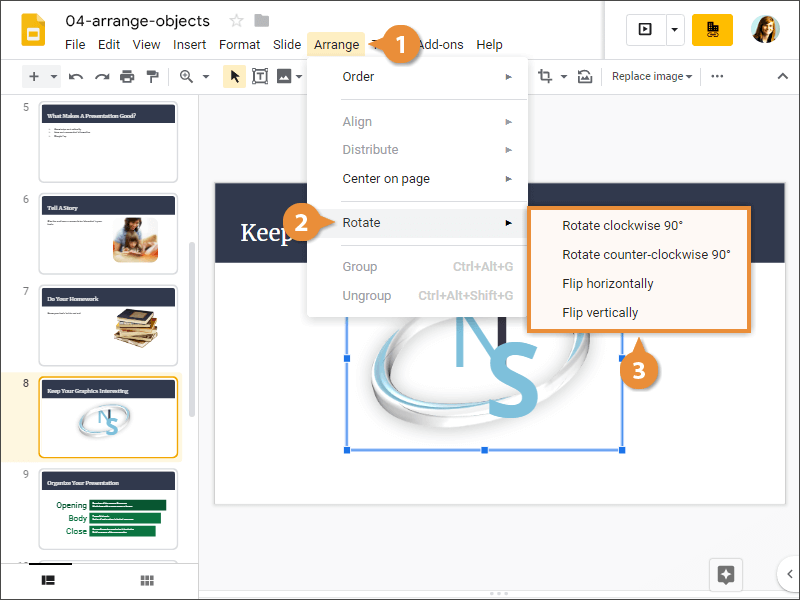
  • Align Objects: Select multiple items and use Arrange > Align to make them organized.
Made byBobr AI

Step 3: EDIT - Visualizing Data

Avoid tables purely with text. Use Insert > Chart to visualize growth. This example shows quarterly revenue growth, a staple in sales pitches.

Chart
Made byBobr AI

Step 3: EDIT - Working with Media

Use 'Insert > Image > Search the web' for quick royalty-free assets.
Crop images to shapes (Masking): Select image > Crop arrow > Shapes > Circle.

Result: Mask to Circle

Made byBobr AI

Step 4: FORMAT - Polish & Align

Nothing ruins a professional deck faster than misaligned boxes. Do not eyeball it.

💡 Select multiple objects → Right Click → Align (Center/Middle) or Distribute.

Made byBobr AI

Step 4: FORMAT - Transitions & Motion

Keep it Professional

Avoid 'Cube', 'Flip', or 'Gallery'. Use 'Fade' or 'Simple Slide' for professional sales decks.

Object Animation

Use 'Appear' on click to reveal bullet points one by one. This keeps the audience focused on what you are saying now.

Made byBobr AI

Phase 4: Rehearse with Presenter View

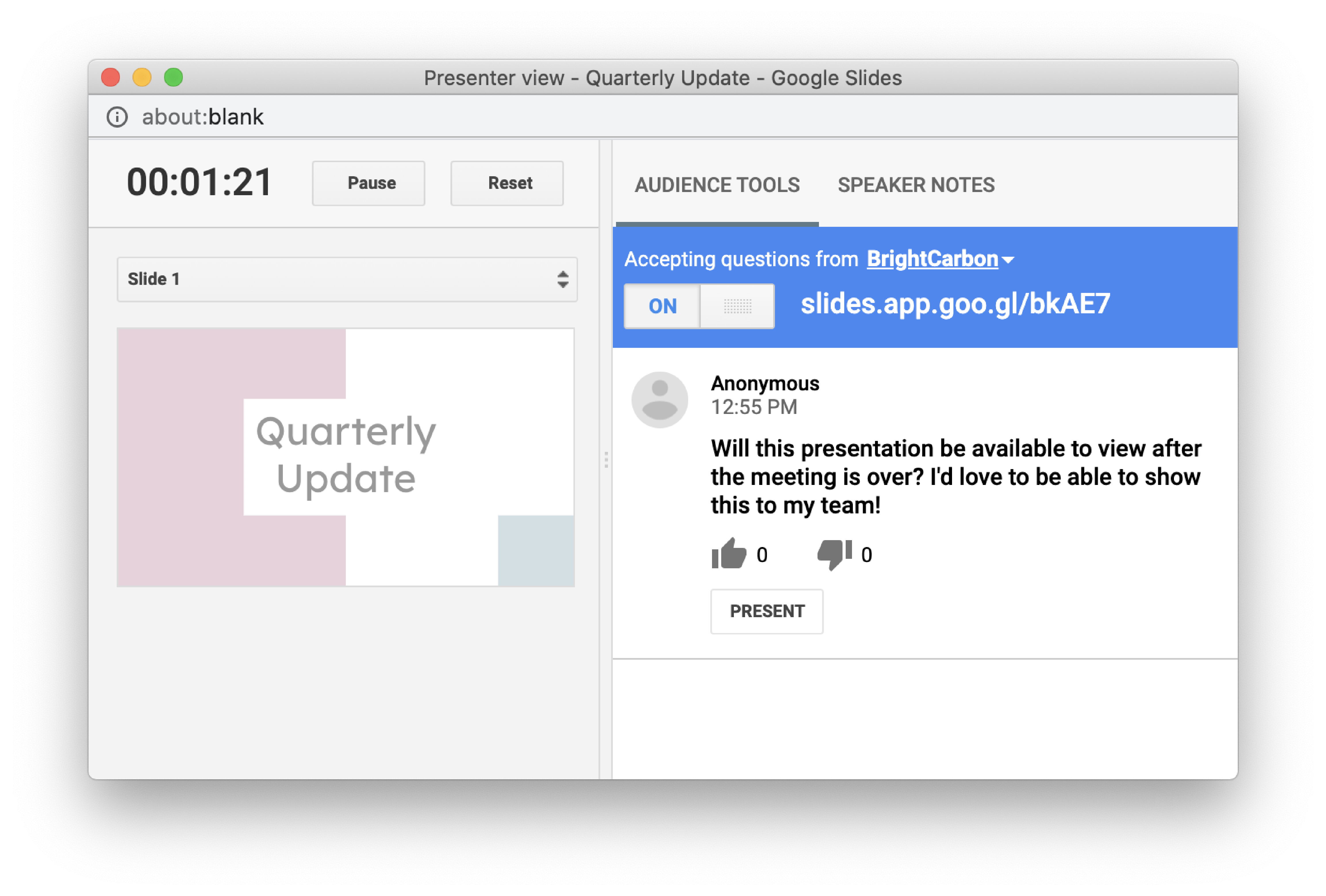
Don't read off your slides. Use 'Presenter View' (Arrow next to Slideshow button). It shows you the timer, upcoming slides, and your private Speaker Notes while the audience only sees the main content.

Made byBobr AI

Engaging the Audience: Q&A Tools

Google Slides has a built-in Q&A tool. Turning this on creates a link where your audience can submit questions in real-time.

Chart
Made byBobr AI

Recap: The Winning Formula

PLAN: Outline in Docs first.
BUILD: Use 'Edit Theme' & Grid.
POLISH: Check alignment.
REHEARSE: Use speaker notes.

Ready to build your deck? Open slides.new to start.

Made byBobr AI
Bobr AI

DESIGNER-MADE
PRESENTATION,
GENERATED FROM
YOUR PROMPT

Create your own professional slide deck with real images, data charts, and unique design in under a minute.

Generate For Free

Mastering Google Slides: Guide to Professional Sales Pitches

Learn how to create, format, and edit high-impact sales presentations in Google Slides with this step-by-step professional workflow.

How to Create, Format, and Edit Presentations

A step-by-step workflow: Create, Format, Edit

Workflow: Create, Format, Edit

1. CREATE: Plan Structure & Content

2. FORMAT: Themes, Fonts & Colors

3. EDIT: Refine Text, Media, & Data

4. REVIEW: Polish & Rehearse

Step 1: CREATE - Plan Your Narrative

Define the 'Big Idea': What problem are you solving for the client?

Structure the flow: Hook → Problem → Solution → Evidence → Call to Action.

Do not open Google Slides yet. Use a Google Doc to outline text first.

Step 2: FORMAT - Set the Master Theme

Don't format slide-by-slide. Go to Slide > Edit Theme to format the entire deck at once.

Set your corporate fonts (e.g., Roboto, Open Sans) on the master layout.

Place logos on the master slide so they appear automatically on every new slide.

Step 3: EDIT - Text & Layout Basics

Insert Text Properly: Use standard layouts (Ctrl+M) rather than drawing manual text boxes for better consistency.

Focus on Hierarchy: Use concise headers and bullet points. Avoid long paragraphs.

Align Objects: Select multiple items and use Arrange > Align to make them organized.

Step 3: EDIT - Visualizing Data

Avoid tables purely with text. Use Insert > Chart to visualize growth. This example shows quarterly revenue growth, a staple in sales pitches.

Step 3: EDIT - Working with Media

Use 'Insert > Image > Search the web' for quick royalty-free assets.

Crop images to shapes (Masking): Select image > Crop arrow > Shapes > Circle.

Step 4: FORMAT - Polish & Align

Nothing ruins a professional deck faster than misaligned boxes. Do not eyeball it.

Select multiple objects → Right Click → Align (Center/Middle) or Distribute.

Step 4: FORMAT - Transitions & Motion

Keep it Professional

Avoid 'Cube', 'Flip', or 'Gallery'. Use 'Fade' or 'Simple Slide' for professional sales decks.

Object Animation

Use 'Appear' on click to reveal bullet points one by one. This keeps the audience focused on what you are saying now.

Phase 4: Rehearse with Presenter View

Don't read off your slides. Use 'Presenter View' (Arrow next to Slideshow button). It shows you the timer, upcoming slides, and your private Speaker Notes while the audience only sees the main content.

Engaging the Audience: Q&A Tools

Google Slides has a built-in Q&A tool. Turning this on creates a link where your audience can submit questions in real-time.

Recap: The Winning Formula

PLAN: Outline in Docs first.

BUILD: Use 'Edit Theme' & Grid.

POLISH: Check alignment.

REHEARSE: Use speaker notes.

Ready to build your deck? Open slides.new to start.

  • google-slides
  • sales-pitch
  • presentation-skills
  • pitch-deck
  • marketing-strategy
  • tutorial
  • business-productivity