







Made byBobr AI

How to Create a Segmented Strategy Triangle in PowerPoint

Learn how to build a professional Partnership Strategy Triangle graphic in PowerPoint using shape merging, gradients, and custom silhouettes.

#powerpoint-tutorial#business-graphics#presentation-design#strategy-triangle#corporate-deck#merge-shapes#graphic-design
Watch
Pitch

Recreating the Partnership Strategy Triangle

A step-by-step PowerPoint tutorial to build a segmented corporate graphic.

Made byBobr AI

Analyzing the Source Material

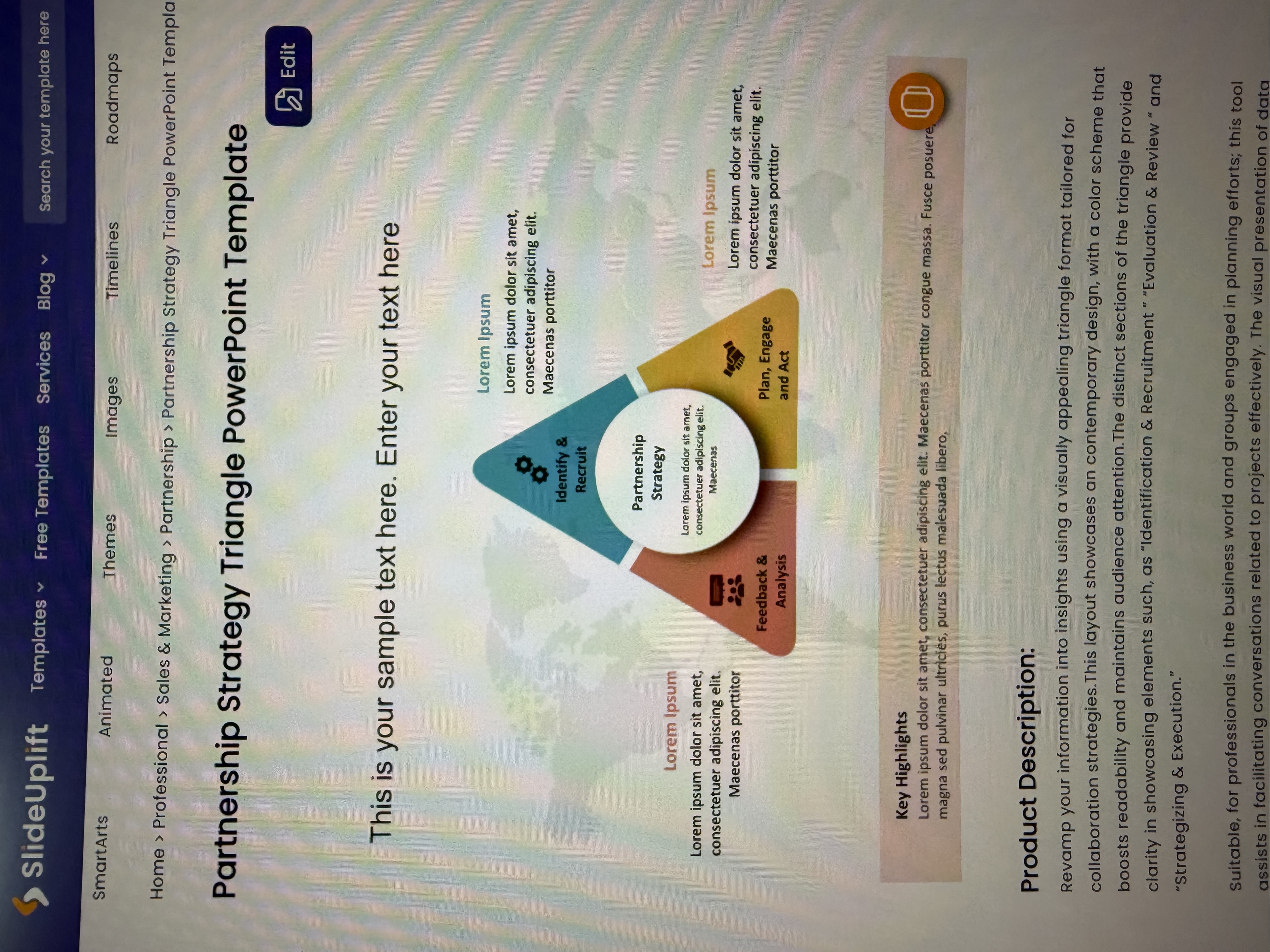
• Shape Structure: Rounded triangle with a central circular cutout.
• Segmentation: Three distinct sections divided by gaps.
• Color Palette: Teal, Mustard Yellow, and Rust Red.
• Style: Soft gradients and subtle drop shadows.
Made byBobr AI

Step 1: Set Up Base Shapes

1. Insert an Isosceles or Equilateral Triangle.
2. Insert a perfect Circle (hold Shift while dragging).
3. Use 'Align Center' and 'Align Middle' to position the circle exactly in the center of the triangle.
Made byBobr AI

Step 2: Draw Cutting Lines

To split the triangle into three equal segments:

• Draw a line from the center of the circle to the top vertex.
• Draw lines from the center to the bottom-left and bottom-right vertices.
• Ensure lines extend beyond the triangle's edges.
Made byBobr AI

Critical Tool: Merge Shapes

We will use the Fragment command.

1. Select the Triangle first.
2. Hold Shift and select the Circle and the 3 Lines.
3. Go to Shape Format > Merge Shapes > Fragment.

This breaks the graphic into individual editable pieces.
Made byBobr AI

Step 3: Cleanup & Separation

After fragmenting:
1. Delete the central circle pieces.
2. Delete the line remnants.
3. You now have three separate trapezoid-like shapes.
4. (Optional) Group them temporarily to resize or move.
Made byBobr AI

Step 4: Applying Corporate Colors

Match the colors from the reference image:

Sector 1 (Left): Teal / Cyan (#2A7C86)
Sector 2 (Right): Mustard / Gold (#D4A900)
Sector 3 (Bottom): Rust / Terracotta (#A54837)

Remove the shape outline (Set Shape Outline to 'No Outline').
Made byBobr AI

Step 5: Visual Styling (Depth)

To achieve the 3D look without animation:

Gradient Fill: Change solid fill to 'Linear Gradient' for each segment. Use a slightly lighter shade on one end to create curvature.
Shadow: Add an 'Outer Shadow' (Offset Center) with Blur: 10pt and Transparency: 60%.
White Borders: Add a thick white outline (3pt-6pt) to separate the segments cleanly.
Made byBobr AI

Step 6: Adding the Center Shield

1. Insert a new Circle shape in the center.
2. Fill with White.
3. Add a soft shadow to lift it off the triangle.
4. Add your central text (e.g., "Partnership Strategy").
5. Place icons on the three colored segments.
Made byBobr AI

Final Result & Best Practices

Contrast is Key: Use white text on the dark segments for readability.
Grouping: Always Group (Ctrl+G) your final graphic to resize it easily without breaking alignment.
Icons: Use simple white SVG icons for a modern look.
Consistency: Ensure the rotation of text matches the segment if needed, or keep it horizontal for easier reading.
Made byBobr AI
Bobr AI

DESIGNER-MADE
PRESENTATION,
GENERATED FROM
YOUR PROMPT

Create your own professional slide deck with real images, data charts, and unique design in under a minute.

Generate For Free

How to Create a Segmented Strategy Triangle in PowerPoint

Learn how to build a professional Partnership Strategy Triangle graphic in PowerPoint using shape merging, gradients, and custom silhouettes.

Recreating the Partnership Strategy Triangle

A step-by-step PowerPoint tutorial to build a segmented corporate graphic.

Analyzing the Source Material

• Shape Structure: Rounded triangle with a central circular cutout.<br>• Segmentation: Three distinct sections divided by gaps.<br>• Color Palette: Teal, Mustard Yellow, and Rust Red.<br>• Style: Soft gradients and subtle drop shadows.

Step 1: Set Up Base Shapes

1. Insert an Isosceles or Equilateral Triangle.<br>2. Insert a perfect Circle (hold Shift while dragging).<br>3. Use 'Align Center' and 'Align Middle' to position the circle exactly in the center of the triangle.

Step 2: Draw Cutting Lines

To split the triangle into three equal segments:<br><br>• Draw a line from the center of the circle to the top vertex.<br>• Draw lines from the center to the bottom-left and bottom-right vertices.<br>• Ensure lines extend beyond the triangle's edges.

Critical Tool: Merge Shapes

We will use the <b>Fragment</b> command.<br><br>1. Select the Triangle first.<br>2. Hold Shift and select the Circle and the 3 Lines.<br>3. Go to <b>Shape Format > Merge Shapes > Fragment</b>.<br><br>This breaks the graphic into individual editable pieces.

Step 3: Cleanup & Separation

After fragmenting:<br>1. Delete the central circle pieces.<br>2. Delete the line remnants.<br>3. You now have three separate trapezoid-like shapes.<br>4. (Optional) Group them temporarily to resize or move.

Step 4: Applying Corporate Colors

Match the colors from the reference image:<br><br><b>Sector 1 (Left):</b> Teal / Cyan (#2A7C86)<br><b>Sector 2 (Right):</b> Mustard / Gold (#D4A900)<br><b>Sector 3 (Bottom):</b> Rust / Terracotta (#A54837)<br><br>Remove the shape outline (Set Shape Outline to 'No Outline').

Step 5: Visual Styling (Depth)

To achieve the 3D look without animation:<br><br>• <b>Gradient Fill:</b> Change solid fill to 'Linear Gradient' for each segment. Use a slightly lighter shade on one end to create curvature.<br>• <b>Shadow:</b> Add an 'Outer Shadow' (Offset Center) with Blur: 10pt and Transparency: 60%.<br>• <b>White Borders:</b> Add a thick white outline (3pt-6pt) to separate the segments cleanly.

Step 6: Adding the Center Shield

1. Insert a new Circle shape in the center.<br>2. Fill with White.<br>3. Add a soft shadow to lift it off the triangle.<br>4. Add your central text (e.g., "Partnership Strategy").<br>5. Place icons on the three colored segments.

Final Result & Best Practices

• <b>Contrast is Key:</b> Use white text on the dark segments for readability.<br>• <b>Grouping:</b> Always Group (Ctrl+G) your final graphic to resize it easily without breaking alignment.<br>• <b>Icons:</b> Use simple white SVG icons for a modern look.<br>• <b>Consistency:</b> Ensure the rotation of text matches the segment if needed, or keep it horizontal for easier reading.

  • powerpoint-tutorial
  • business-graphics
  • presentation-design
  • strategy-triangle
  • corporate-deck
  • merge-shapes
  • graphic-design