
Why Create Presentations from Notion?
Teams already use Notion as their knowledge base — project plans, quarterly reports, product specs, meeting notes, and company wikis all live there. When it's time to present that work, you typically face a painful process: open a blank deck, switch back to Notion, copy content, paste it, format it, find images, build charts, and repeat for every slide.
With Bobr AI's Notion integration, you skip all of that. The AI reads your Notion page directly — including text, tables, databases, images, and nested content — and generates a professional presentation with a unique layout, relevant visuals, and structured narrative. You stay in one tool and focus on the story, not the formatting.
This works especially well for recurring presentations like weekly updates, sprint reviews, and investor reports, where the source data already lives in Notion and just needs to be reshaped into slides.
Step-by-Step: Notion to Presentation
Here's exactly how to go from a Notion page to a finished slide deck. The whole process takes under 5 minutes.
Connect Notion to Bobr AI
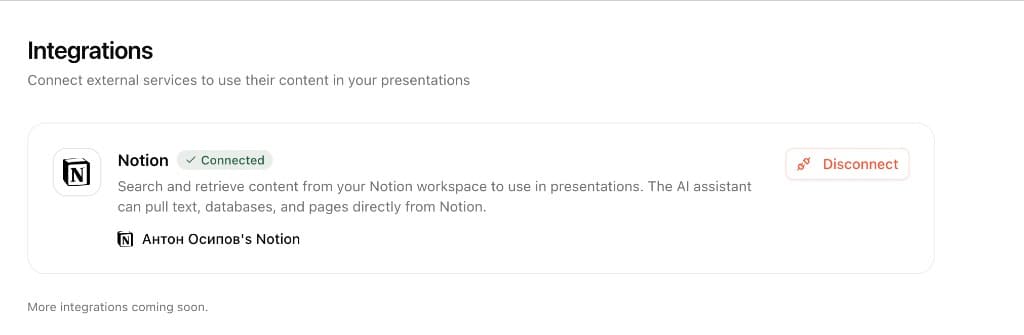
Go to Dashboard → Integrations and click Connect next to Notion. You'll be redirected to Notion's authorization page where you select which workspace and pages to share.
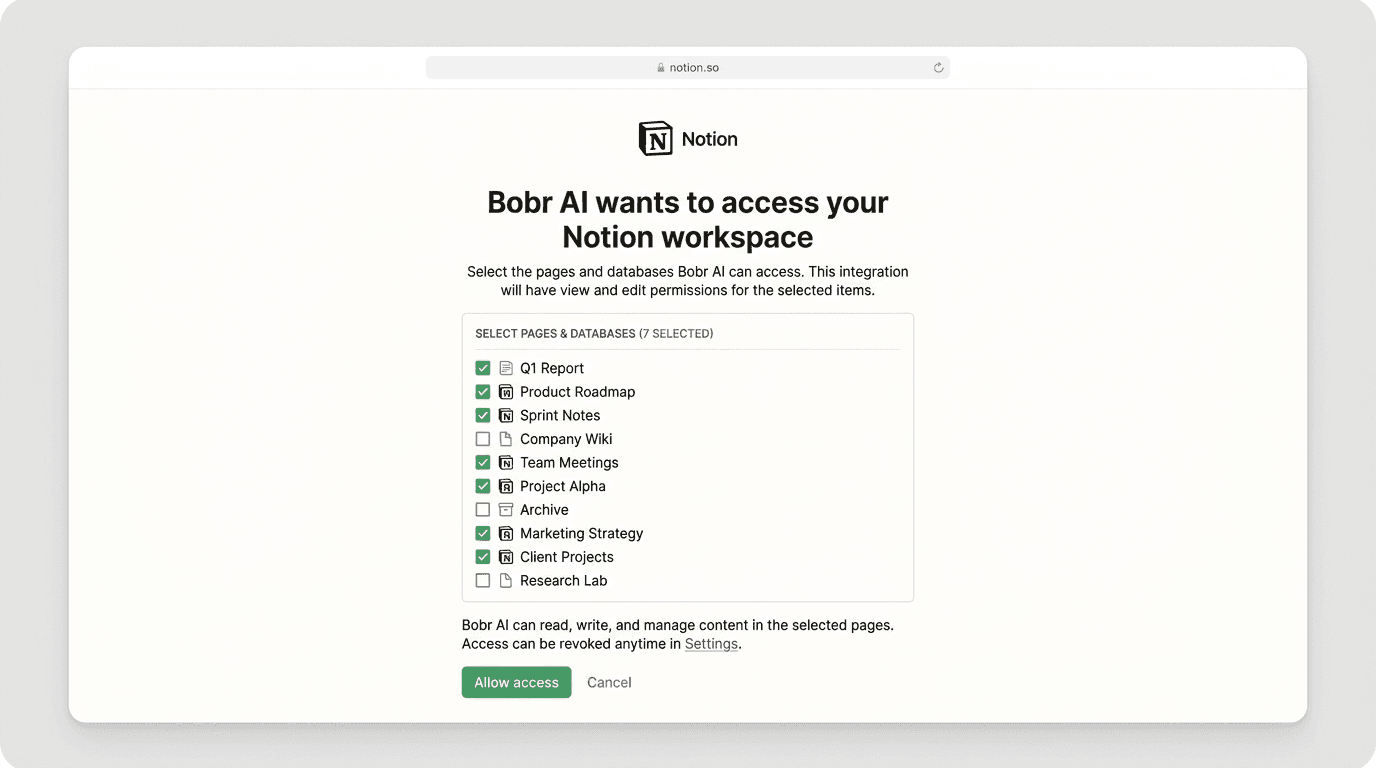
Authorize access to your pages
On the Notion authorization screen, select the pages and databases you want Bobr AI to access. You control exactly what content is shared — no more, no less.
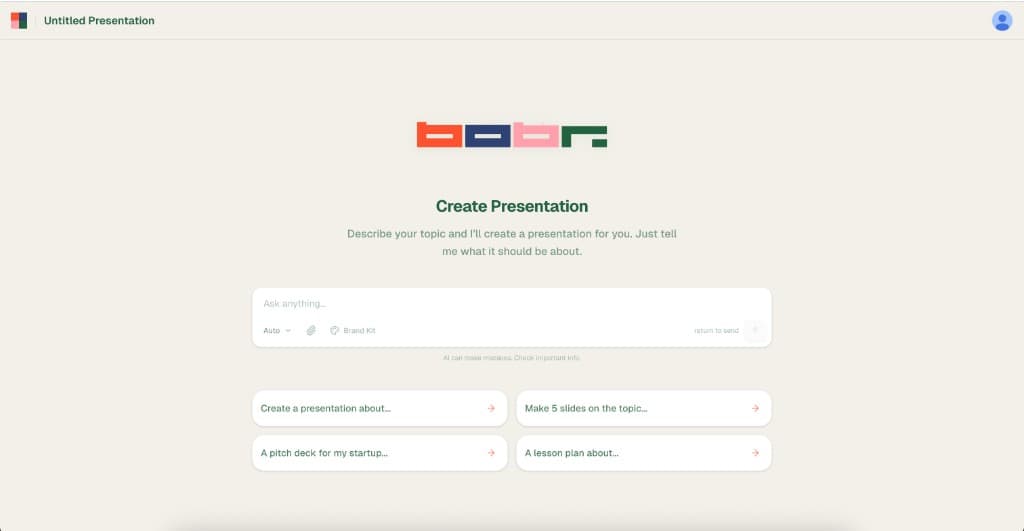
Start a new presentation
Head back to Bobr AI and create a new presentation. You'll see the familiar chat interface where you describe what you want.
Ask the AI to use your Notion content
Type a prompt that references your Notion content. For example: "Create a presentation from my Q1 Report in Notion" or "Make slides from the Product Roadmap page in Notion." The AI will search your connected workspace automatically.

AI pulls content and builds slides
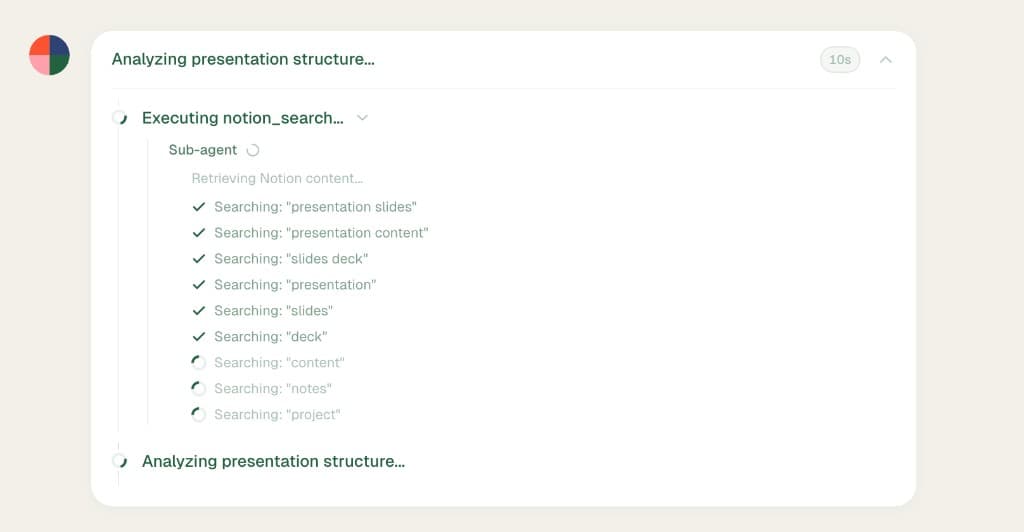
Bobr AI searches your Notion workspace, reads the page content (including text, lists, databases, and images), and transforms it into a structured slide deck. Every layout is generated uniquely — no templates.
Review, refine, and export
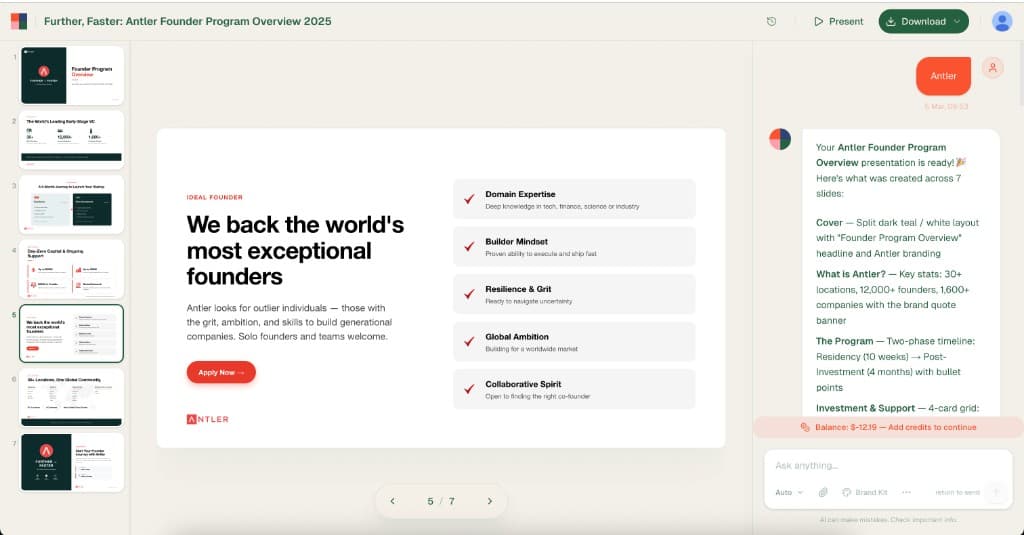
Review the generated slides. Use chat to make adjustments: "make slide 3 shorter", "add a chart from the metrics table", or "change the color scheme." When you're happy, export as PPTX or PDF.
What Notion Content Works Best
The integration supports most Notion block types. Here's what gets imported and how it translates to slides:
Pages with text
Headings, paragraphs, bullet lists, numbered lists, quotes, callouts, and toggle blocks are all extracted and used as slide content.
Databases
The AI reads rows and properties (text, numbers, selects, dates, checkboxes, URLs) and can summarize data, create charts, or list key items.
Images
Images embedded in your Notion pages are downloaded and can be placed on slides automatically.
Code blocks
Code snippets are preserved and formatted on slides — useful for technical presentations and documentation decks.
Nested sub-pages
The AI can navigate into child pages to pull content from deeper in your workspace structure.
To-do lists
Task lists with checkboxes are extracted — great for project status updates and sprint review presentations.
Tips for Better Results
To get the most out of the Notion → presentation workflow, keep these in mind:
Structure your Notion page well
Use headings (H1, H2, H3) to organize content. The AI uses your heading structure to determine the slide outline — each major section often becomes its own slide.
Include data in tables or databases
Notion databases and tables translate beautifully into charts and data slides. The AI can pull numbers, create visualizations, and cite the source automatically.
Be specific in your prompt
Instead of "make a presentation from Notion," say "Create a 10-slide investor update from my Q1 Metrics page in Notion. Focus on revenue growth and user acquisition."
Combine Notion with other sources
You can reference Notion content alongside uploaded PDFs, images, or web research. The AI merges everything into a cohesive deck.
Keep pages focused
A single Notion page with a clear topic works better than a massive document covering everything. If needed, point the AI to a specific sub-page.
Prompt Examples for Notion Presentations
Copy and adapt these prompts. Replace the bracketed parts with your own details.
Weekly team update
Create a presentation from my "Weekly Update - March 10" page in Notion. 6-8 slides. Focus on completed tasks, blockers, and next week's plan. Keep it concise.
Investor report from metrics database
Use my "Q1 2026 Metrics" database in Notion to create an investor update. Include charts for MRR, user growth, and churn. 10 slides. Professional tone.
Product roadmap presentation
Turn my "Product Roadmap 2026" Notion page into a presentation for the engineering team. Group features by quarter. Include timeline and priorities. 12 slides.
Sprint review deck
Create a sprint review presentation from my "Sprint 14" page in Notion. Show completed stories, demo screenshots, velocity chart, and next sprint goals. 8 slides.
Onboarding presentation from wiki
Make an onboarding presentation from my "Company Handbook" page in Notion. Cover culture, tools, team structure, and first-week checklist. Friendly tone. 10 slides.
Frequently Asked Questions
What Notion content can Bobr AI access?+
Bobr AI can read pages, databases, text, images, tables, to-do lists, code blocks, and nested sub-pages. During the authorization step, you choose exactly which pages and databases to share.
Is my Notion data secure?+
Yes. Bobr AI uses Notion's official OAuth integration. Your data is accessed only when you explicitly ask the AI to use it in a presentation. You can disconnect Notion at any time from Dashboard → Integrations.
Can I use multiple Notion pages in one presentation?+
Yes. You can reference multiple pages in a single prompt, or ask the AI to combine content from different pages. For example: "Use my Product Roadmap and Q1 Metrics pages to create a board update deck."
Do I need a Notion paid plan?+
No. The integration works with both free and paid Notion plans. As long as you can authorize the OAuth connection, any accessible page can be used.
Can I update the presentation when my Notion page changes?+
Yes. Open the presentation and ask the AI to refresh the content from Notion. It will re-read the page and update the slides with the latest data.
What if my Notion page is very long?+
The AI handles long pages by summarizing and selecting the most relevant content for slides. You can guide it by specifying which sections to focus on in your prompt.
Can I disconnect Notion later?+
Yes. Go to Dashboard → Integrations and click Disconnect next to Notion. Previously created presentations are not affected — they keep the content that was already generated.
Explore More
Turn Your Notion Pages into Presentations
Connect your Notion workspace and let AI build polished slides from your existing content. No templates. No copy-pasting.